Lightbox puts the information you need for a review in one place and lets you prepare it without asking your provider for a status report first. Start by filtering your portfolio to the rights on the agenda, for instance by jurisdiction, class, status or holder, and use Table View to scan them side by side.
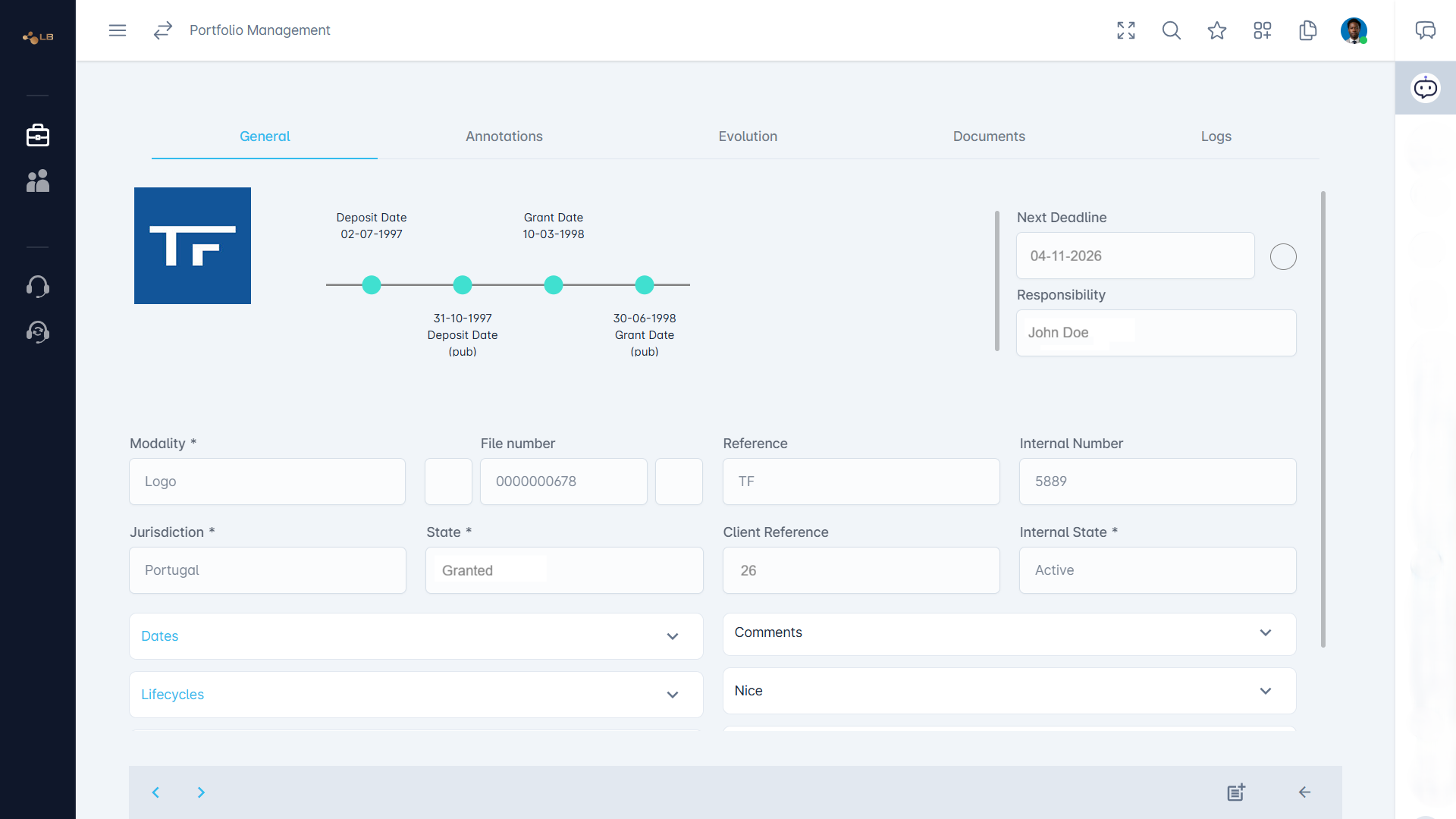
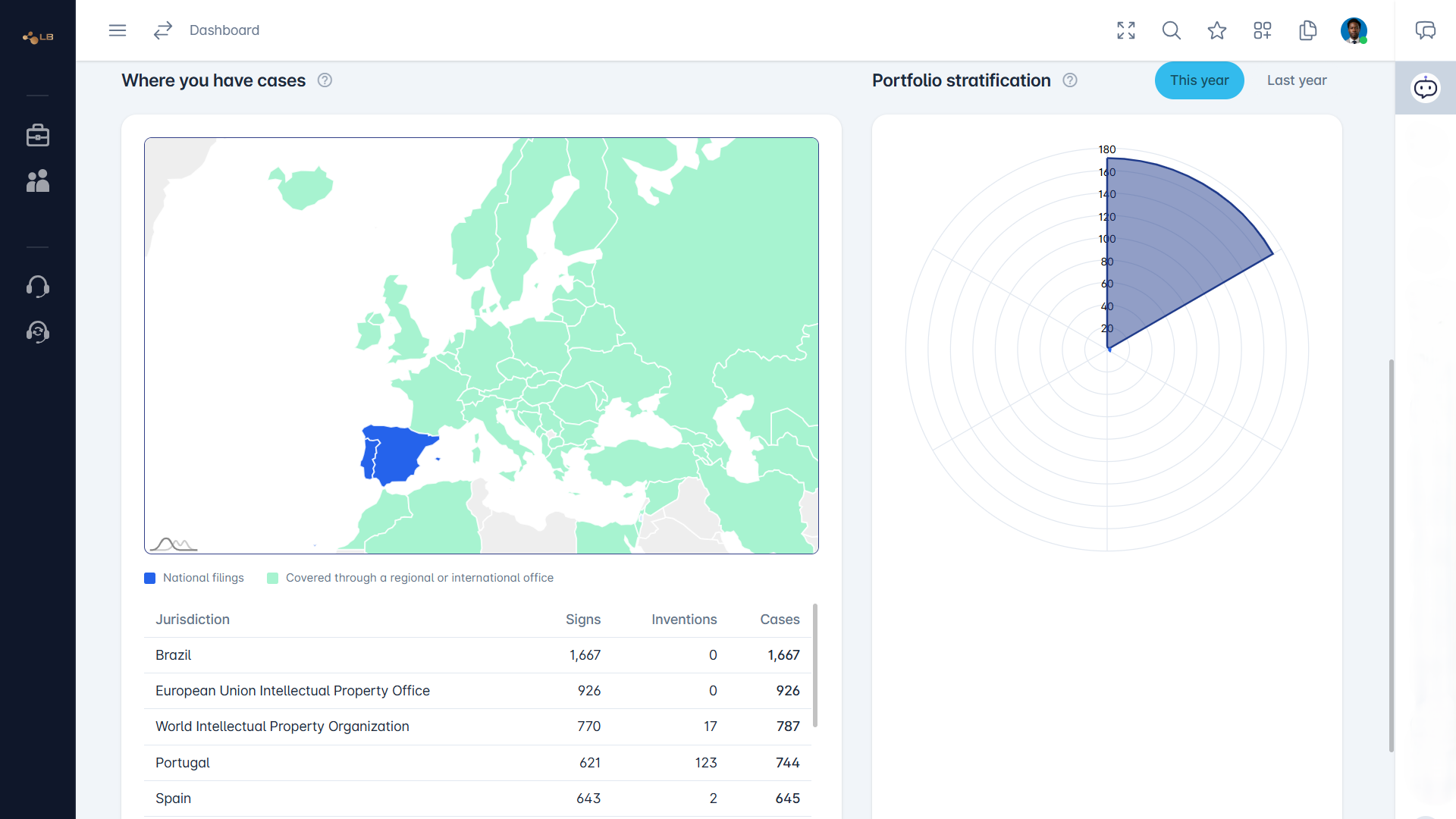
Open the key cases to check their status, next deadline, recent acts on the Evolution tab and the documents shared, and read the annotations already written on them, so that past decisions and open questions are fresh in your mind. The Performance Dashboard gives you the broader picture to open the meeting with: Coverage, Vitality and Conflictuality over the period you choose, the Portfolio Stratification chart and the World Coverage map, which help you spot jurisdictions where you are thin or areas with more disputes.
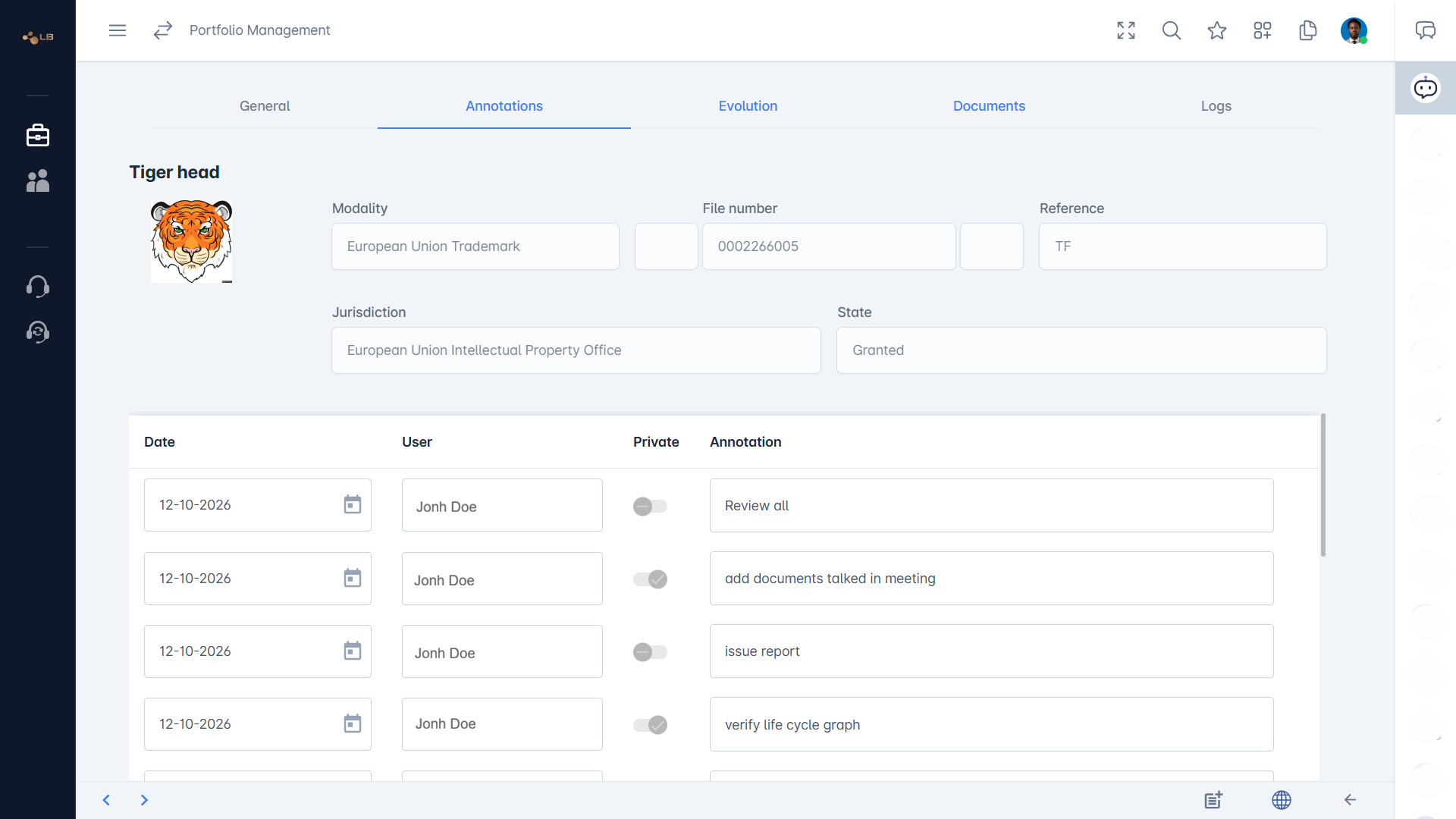
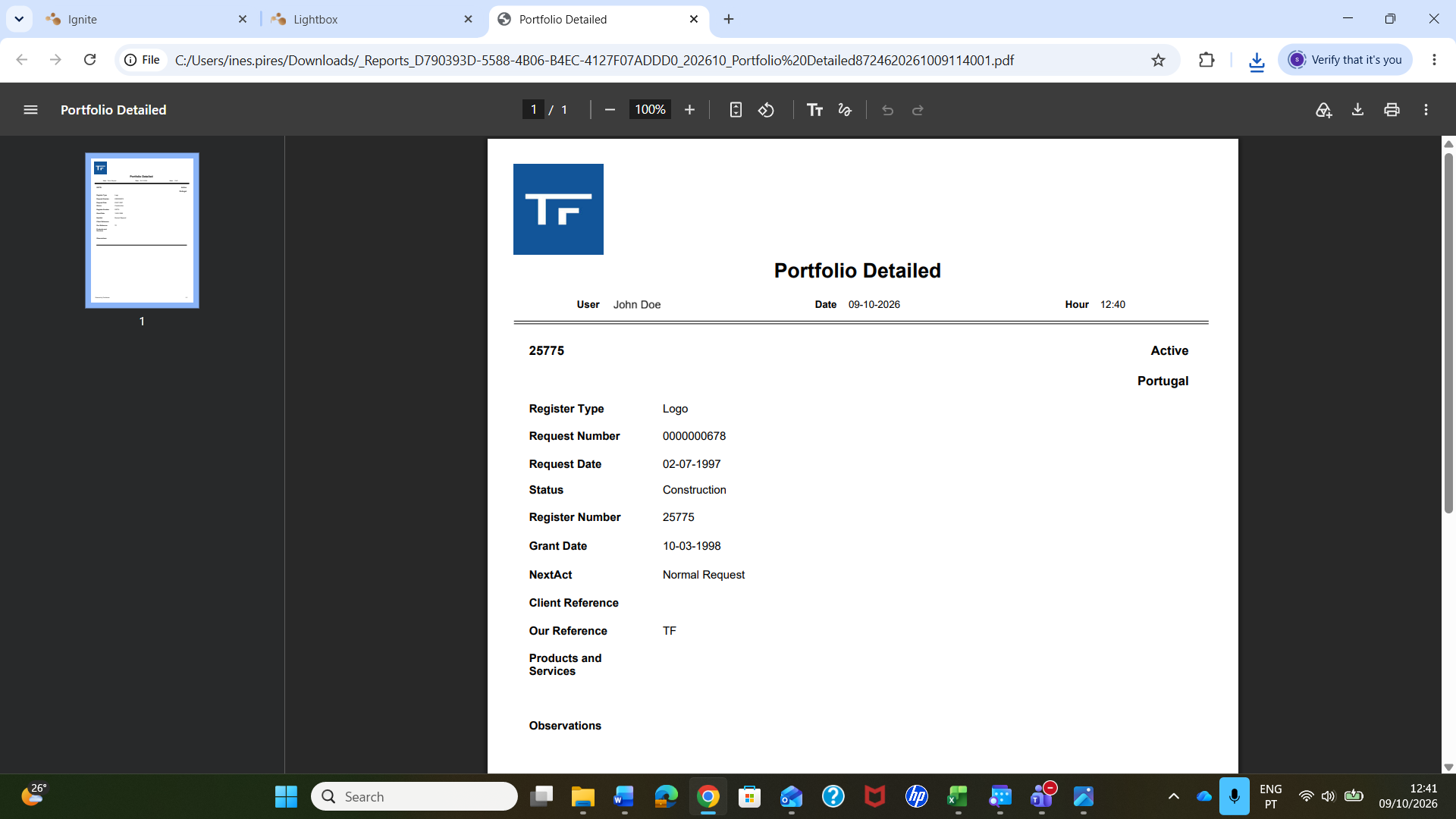
Request a report in PDF for the participants, or in Excel if you want to work on the list, in the language each needs. During or after the meeting, record the action points as annotations on the cases concerned, dated and signed, marking internal ones as Private, so that the decisions stay attached to the rights they concern and can be followed up at the next review.
The simplest and safest way is to give your colleagues their own access rather than sending them files. An Admin of your Lightbox account can invite colleagues from Profile > Team, choosing a role for each: Reader for those who only need to consult, such as marketing, product or management teams, and Contributor for those who should also add annotations, such as the in-house legal team.
Each person then signs in with their own Darwin Suite email and password, chooses their own interface language and sees the same portfolio, so everybody works from one information base that is updated by synchronisation instead of from spreadsheets that go out of date the day they are sent. That also reduces the number of status requests to your provider, since colleagues can find the answer themselves, and keeps a record of who did what, as annotations carry their author.
When someone needs something to take away, such as a board member or an external adviser, request a report in PDF or Excel. Remember that access follows the account: anyone you invite sees the whole portfolio synchronised to it, so choose roles with care, and remove people promptly from Profile > Team when they leave or no longer need it.