Darwin Lightbox for brand owners

Every right, every agent and every deadline in one place, without asking anyone for an update.

Your IP, always in sight

For companies, brand owners and in-house IP teams

Your trade marks, patents and designs are managed by external agents or law firms, often more than one. Knowing where everything stands means asking each of them, waiting for spreadsheets, and reconciling reports that never quite match.

Lightbox gives your company a clear, read-only view of the cases your providers manage: status, deadlines, documents, history and life cycle, with a dashboard of the whole portfolio and a place to leave your instructions on each case. The data comes straight from your providers' systems, Darwin Ignite or Darwin 5.1, so it is their record you see, updated at every synchronisation.

There are two ways in. If your provider already shares your portfolio under their own LawFirm plan, you have nothing to subscribe to: ask them for access. If you work with several providers and want them all in one view, your company subscribes to the BrandOwner plan and brings its providers in.

Lightbox for rights holders: your IP, always in sight

Direct and simple access

Check the status of your IP processes at any time and from anywhere, without having to contact your agent or lawyer for updates.

Organisation and clarity

All the data of your IP processes is presented intuitively, easy to understand even for non-specialists.

Focus on transparency

A complete, clear view of every stage and development of your processes, without uncertainty or the need to ask.

Security and control

Immediate access to the most relevant information makes you better informed and more confident about the protection of your assets.

Up-to-date information

Every synchronisation brings the latest state of your cases, with a last-update indicator so you always know how current the data is.

Informed decisions

With all the relevant information at hand, you make more assertive and strategic decisions about your assets.

Consulting your portfolio

Search and filter your portfolio by owner, jurisdiction, class, status or reference. Each case shows:

  • its general data;
  • the important dates and next deadline;
  • its parties and classifications (Nice, Vienna or Locarno);
  • the history of acts on the Evolution tab;
  • the documents your provider shares;
  • its theoretical life cycle graph;
  • a direct link to the case in the official register.

Trade marks, patents, designs, other rights and, where your provider shares them, court cases can all be consulted and printed. The data itself is kept and changed by the provider who manages it, so what you see is always their record.

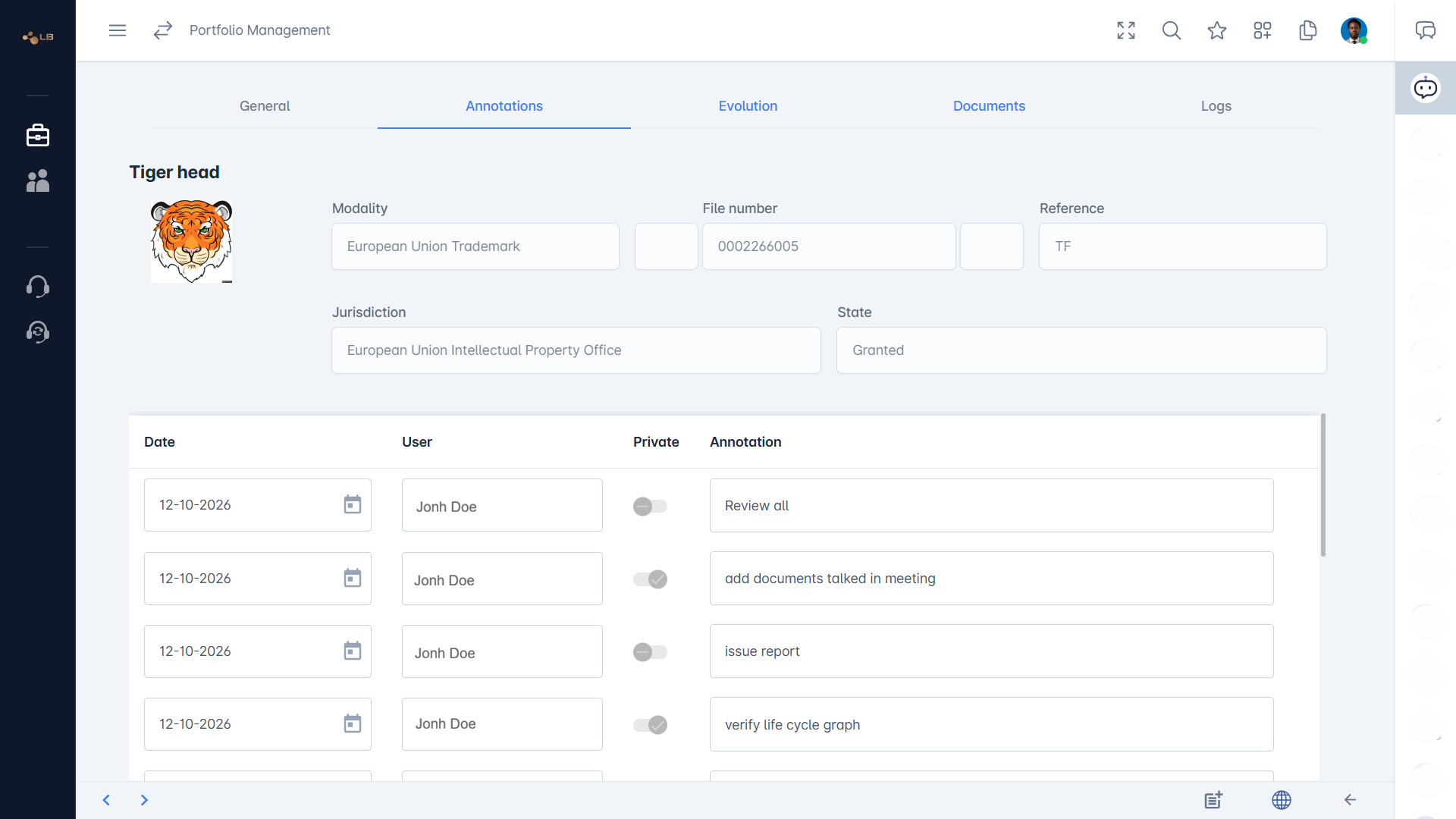
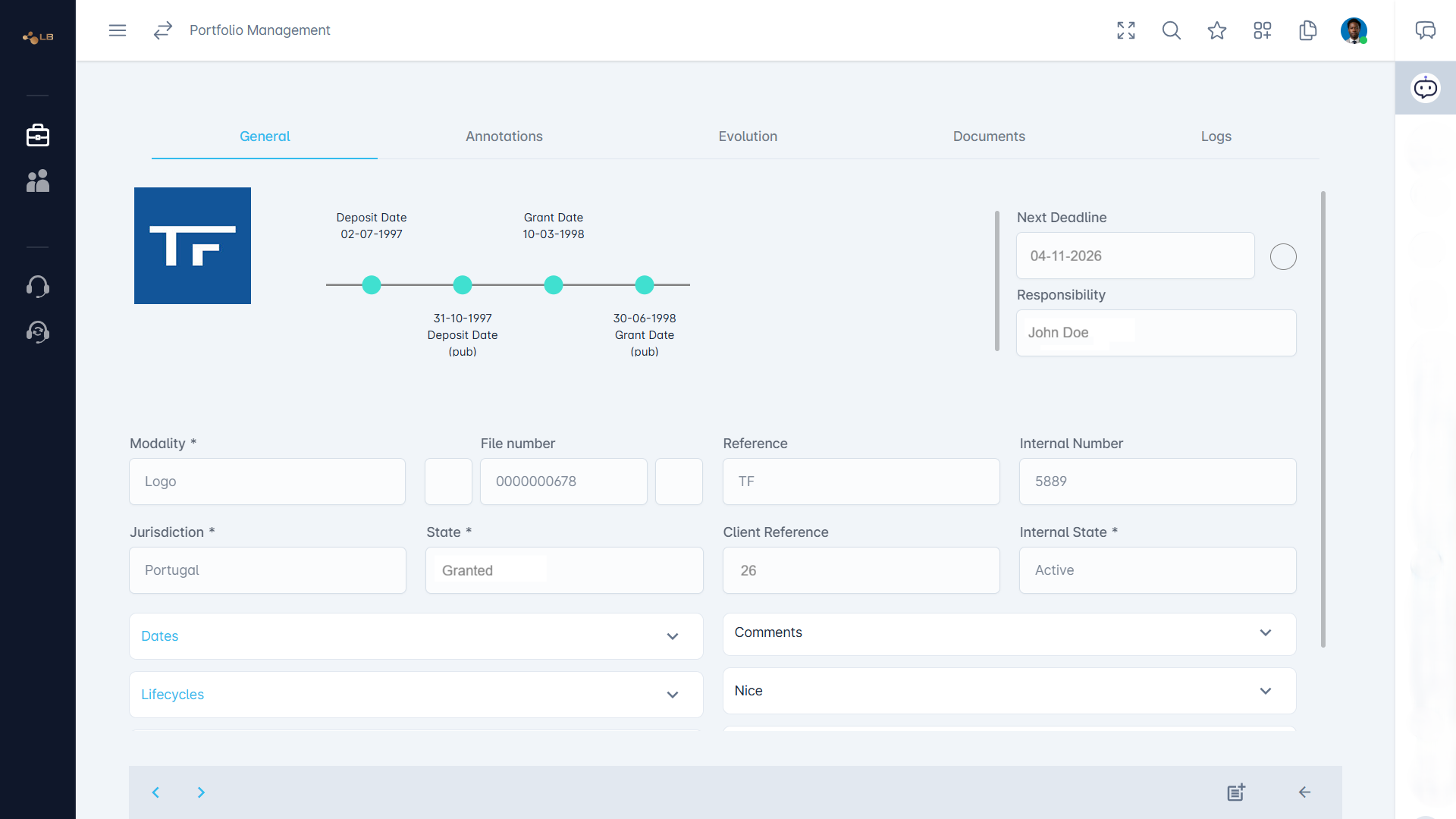
Darwin Lightbox case detail page: General tab, Evolution tab and Documents tab, with the life cycle graph.

Darwin Lightbox case detail page: General tab, Evolution tab and Documents tab, with the life cycle graph.

First make sure the right account is selected in the Accounts menu, since each account has its own portfolio. Then open the portfolio search from the side menu and use the filters to find the case: the quickest way is usually your reference or the application or registration number, but you can also search by title, owner, jurisdiction, class or status.

Run the search and the matching cases appear in a results grid, or in Table View if you prefer columns. Click a case to open its detail page.

The page is organised in tabs: General, with the essential data such as dates, parties, classes, status and next deadline; Annotations, with the notes added to the case; Evolution, with the history of acts; and Documents, with the documents shared with you. From the General tab you can also show the life cycle graph, which displays the theoretical life cycle of the right, and follow the link to the official register of the IP office.

Use Previous and Next to move through the cases in your results without going back to the list. Everything on the page is read-only, except that you can add annotations if your role allows it.

A case detail page brings together what your service provider's system holds about one right, organised in tabs. General shows the essential data: the type of right and its title or wording, the jurisdiction, references and official numbers, the key dates such as filing, publication, registration or grant and renewal, the current status and the next deadline, the parties involved, such as the applicant or holder, the representative and the case responsible, the classes, namely Nice for goods and services, Vienna for figurative elements and Locarno for designs, together with descriptions and, where available, the image of the mark or design. From General you can show the life cycle graph and open the case in the official register of the IP office.

Annotations holds the notes written on the case by you, your colleagues or, where shared, your provider, each with its author and date. Evolution lists the history of the case, with the acts carried out and those still pending.

Documents gives you the documents synchronised for the case. All of it is a read-only copy; what each tab contains depends on what your provider records and shares.

Because the case data in Lightbox is a read-only copy of the record kept by your service provider. The provider is responsible for the legal management of your rights: they file, respond to the IP offices, record acts, control deadlines and keep the official data in their own system, Darwin Ignite or, depending on their configuration, Darwin 5.1. If the copy in Lightbox could be edited, there would soon be two versions of the truth, and a change typed in Lightbox would not reach the office or the provider's deadline control.

That is why there is no Edit, Delete or Save on cases, entities or court cases. If you notice something that seems wrong or out of date, such as a misspelt name, a missing class or a status you do not recognise, add an annotation to the case describing what should change, so the request stays attached to the right record with your name and the date, or contact your provider directly if it is urgent.

Once your provider corrects the record in their system, the correction reaches Lightbox at the next synchronisation. Annotations are the one thing you can add, provided your role allows it.

Open the case and go to its Documents tab. It lists the documents your service provider has synchronised for that case, such as official notifications, certificates, correspondence or reports, usually with their date, type and description so you can find the one you need. Select a document to open it: where the format allows, such as PDFs, images and emails, it is shown directly in the browser, without needing any other program.

Which documents appear depends on what your provider registers against the case in their system and chooses to share with your Lightbox account; documents kept private on the provider's side, or not yet registered, are not shown. Like the rest of the case, the documents are a copy, so you cannot replace or delete them, and new ones arrive at the next synchronisation.

If you expect a document that is not there, for example a registration certificate or an office action you were told about, add an annotation to the case asking for it or contact your provider. Remember also the Evolution tab, which records the acts that documents usually relate to, and the reports, which summarise information across the portfolio.

Open the case and go to its Evolution tab. It lists the acts recorded on the case in date order, from filing onwards: for example publication, oppositions or office actions and the responses to them, registration or grant, renewals or annuities, changes of ownership or representation, and any other steps your provider records. Together they tell the story of the right and explain how it reached its current status, which is shown on the General tab.

The Evolution tab also shows acts that are still pending, that is, steps expected or due but not yet carried out. These matter, because the next deadline shown on the case takes them into account together with the case's next valid date.

To understand where the case should go next, combine the Evolution tab with the life cycle graph, which shows the theoretical path of that type of right in that jurisdiction and where your case stands on it. The history is a read-only copy of your provider's record and is updated at each synchronisation. If an act you know about is missing, or you would like an explanation of one, add an annotation to the case or ask your service provider.

Each case shows its next deadline on the General tab. It is calculated by combining the case's next valid date, such as the renewal date of a trade mark or design or the due date of a patent annuity, with the acts still pending in its history, so that a pending response to an office or another outstanding step is taken into account and the earliest relevant date is shown. As a deadline approaches, it is highlighted in colour so that it stands out.

To see the reason for a deadline, look at the Evolution tab, which lists the pending acts, and at the life cycle graph, which shows the step the case has reached and what comes next. To review deadlines across the portfolio, use the search with status and date-related filters, Table View to compare dates side by side, or a report.

Bear in mind that Lightbox shows deadlines but does not act on them: it does not instruct your provider or renew anything automatically. If you want a right to be renewed, a response filed or a case abandoned, give your instruction to your provider, record it in an annotation so the decision stays with the case, and confirm with them in good time before the date.

On the General tab of a case, choose Show lifecycle graph to see the theoretical life cycle of the right. It is a diagram of the path that this type of right normally follows in its jurisdiction, from filing through examination, publication, possible opposition, registration or grant, and then maintenance and renewal. The graph is made of states, the stages the right can be in, and conditions, the questions that decide which way it goes next, for example whether an opposition was filed; the legend explains how conditions met and not met are shown, and the steps carry the typical time between them in days, months or years.

The step your case has reached is marked, together with the date of the previous step, so you can see where it stands and what may come next. This makes the graph a good way to understand a status you are not familiar with, or to explain the process to a colleague.

Remember that it is theoretical: it describes the usual path, not a promise about your case, and real cases can take other turns. If no life cycle has been defined for that type of right and jurisdiction, the graph says so; ask your provider for the detail.

Yes, where the IP office offers an online register and the case has the references it needs. On the case detail page, use the link to the official register to open the record of that application or registration on the website of the office concerned, in a new browser tab. This lets you compare the information your provider has recorded with what the office publishes, consult details the office makes public, such as the full publication text, and show third parties the official source.

The availability and content of the official register depend on each office, so some jurisdictions offer more detail than others, and occasionally an office's site may be slow or unavailable, which is outside Lightbox's control. Lightbox does not change anything at the office; it simply takes you there.

When you have finished, return to the Lightbox tab, where Previous and Next let you move to the other cases of your search results without going back to the list, which is useful when you are checking several cases in turn. If the office shows something that differs from the case in Lightbox, let your provider know with an annotation on the case.

You can consult every type of right that your service provider manages for you and synchronises to your Lightbox account. Typically this includes trade marks, whether word, figurative or other kinds of sign, with their Nice classes for goods and services and, where relevant, Vienna classes for figurative elements and an image of the mark; patents and similar rights for inventions, with their annuities; and designs, with their Locarno classes and images. Depending on what your provider handles, it can also include other industrial property rights recorded in their system.

Each type is shown with the information relevant to it and has its own theoretical life cycle in each jurisdiction. Besides the rights themselves, you can consult the entities linked to your cases, such as holders and representatives, and, depending on your provider's configuration, court cases about your rights.

What you see is decided by the synchronisation your provider sets up: it sends the cases where the entity that represents you has a given role, for example applicant. If a whole category of rights you expect is missing, ask your provider whether it is included in the synchronisation.

Yes, depending on your provider's configuration. Where your service provider manages litigation for you and shares it with your Lightbox account, you can consult the court case records from the menu. Each record brings together the essential information about the proceedings: the court and the judge, the process codes that identify the case, the next action expected, the relevant dates, the entities involved, such as the parties and their representatives, and a timeline of what has happened so far.

The record is organised in tabs: General Data with those details, Evolution with the history of steps, and Documents with the documents shared for the case. As with IP cases, court cases are a read-only copy of your provider's record, so you cannot edit or delete them, and changes reach Lightbox at the next synchronisation.

Court cases help you follow disputes over your rights, such as infringement actions or appeals against office decisions, alongside the portfolio itself, and they are often the background to the Conflictuality indicator on the dashboard. If you expect to see a court case and it is not listed, ask your provider whether court cases are included in what they share with you.

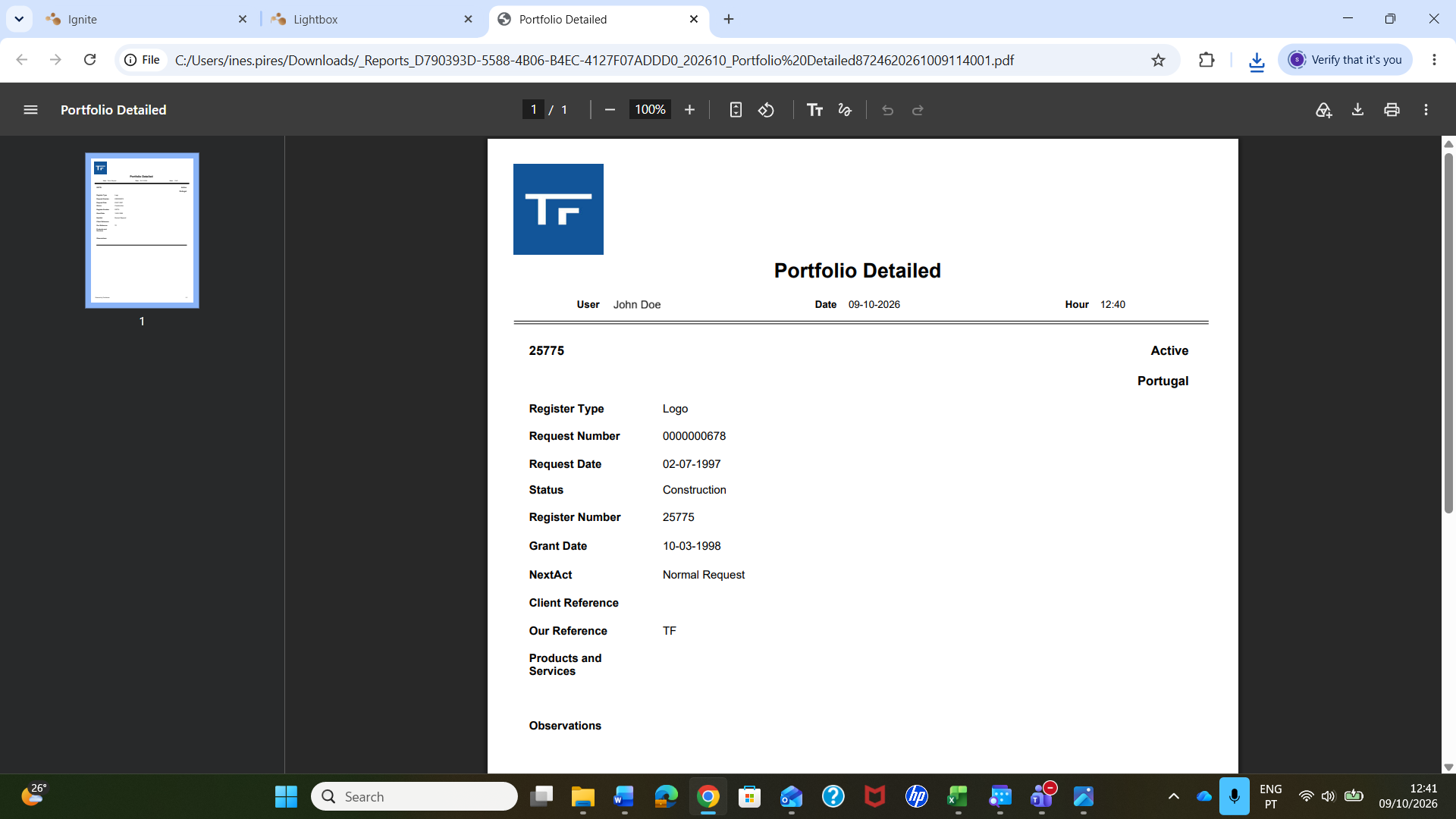
For a structured document, request a report: reports can be produced in PDF, for reading, printing and circulating, or in Excel, for further analysis, and you choose their title, language and, where available, the period and classes they cover; which reports are offered depends on your account's configuration. Reports are prepared in the background and appear in your report list when ready.

For a quick printout of what is on screen, such as a case page or a list of search results, you can use your browser's print function, which also lets you save the page as a PDF. When the aim is to share information with colleagues, however, the better route is usually to invite them to your Lightbox account from Profile > Team with a suitable role, for example Reader for people who only need to consult.

They then see the same, up-to-date information as you, instead of a copy that starts ageing the moment it is sent, they can read the annotations in context, and access can be withdrawn when it is no longer needed. Before forwarding reports or printouts outside your organisation, remember that they may contain personal data about parties and contacts.

The Performance Dashboard

The dashboard monitors the activity and performance of your portfolio:

  • Coverage: how much of your portfolio is being worked on.
  • Vitality: how active it is.
  • Conflictuality: how much of it is drawing oppositions and disputes.
  • Portfolio Stratification: how it divides by type, status and age.
  • World Coverage map: where you are protected.

Each figure can be read over the last 30 days or 3, 6 or 12 months. The subscriber also gets advanced AI-powered analytics.

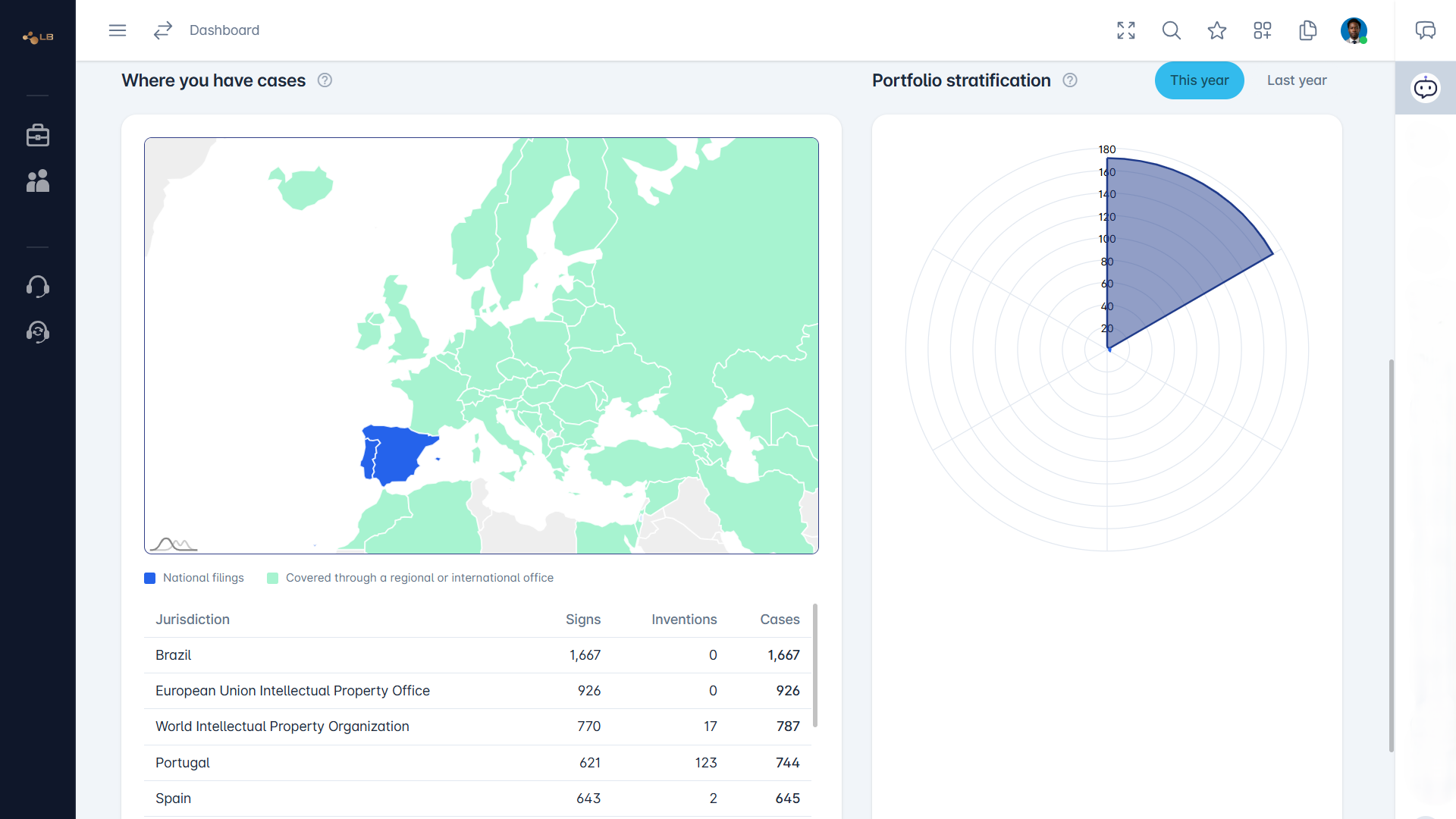
Darwin Lightbox Performance Dashboard: Coverage, Vitality and Conflictuality cards, Portfolio Stratification chart and World Coverage map.

Darwin Lightbox Performance Dashboard: Coverage, Vitality and Conflictuality cards, Portfolio Stratification chart and World Coverage map.

The Performance Dashboard monitors your activity and the performance of your portfolio, giving you an overview without opening cases one by one. At the top are three cards.

Coverage is about how far your portfolio protects your rights over the period. Vitality is about the activity in the portfolio, such as new filings, renewals and other movements. Conflictuality is about how much of the portfolio is drawing oppositions or disputes. Each card can be read over the last 30 days, 3 months, 6 months or 12 months, so you can see both recent movement and the longer trend.

Below the cards, the Portfolio Stratification chart is a radar that compares This Year with Last Year and shows new tasks against completed tasks, giving you a sense of how the work on your portfolio is distributed and progressing. The World Coverage map shows the jurisdictions where your portfolio has rights, helping you see at a glance where you are protected and where there may be gaps.

The figures are prepared in advance from the cases synchronised to your account, so the dashboard opens quickly but does not change the instant a case is updated. On a new account it fills in once the initial load has completed.

Coverage is about how much of your portfolio is actually giving you protection during the period you have chosen. In broad terms, it looks at your rights as recorded in the cases synchronised to your account and reflects the extent to which they are in force and covering you, as opposed to being still pending, lapsed, refused or abandoned.

A healthy Coverage means that a large part of what you have filed is protecting you; a falling Coverage over the months is a prompt to ask why, for example whether renewals have been allowed to lapse on purpose, applications are still waiting for a decision, or rights were refused in some jurisdictions. Read it over 30 days, 3, 6 or 12 months to tell a short-term change from a lasting trend.

Coverage is an indicator, not a legal opinion: it is only as complete as the information your provider's system holds and has synchronised to Lightbox, and it does not tell you whether the protection is adequate for your business. Combine it with the World Coverage map, which shows where you hold rights, and with the detail of individual cases, and discuss any surprise with your service provider.

Vitality is about the activity in your portfolio during the period you have chosen. It reflects how much is happening to your rights: new filings, renewals, and other movements recorded in the history of your cases, such as steps in prosecution, grants and changes of status.

A portfolio with high Vitality is being actively developed and maintained; one with low Vitality is mostly static, which may simply mean that it is mature and stable, or may deserve a question if you expected new filings or renewals to be under way. The card may indicate whether the movement is positive or negative for the period, helping you see whether the portfolio is growing or contracting. Read it over 30 days, 3, 6 or 12 months: a short window shows recent bursts of work, such as a filing campaign, while a long window shows the underlying trend.

Like every dashboard indicator, Vitality is based on the cases synchronised to your account from your provider's system, so activity that has not yet been recorded there does not appear. It is a starting point for questions, which you can then explore in the Evolution tab of individual cases or raise with your service provider.

Conflictuality is about how much of your portfolio is involved in disputes during the period you have chosen. It reflects the rights that are drawing oppositions, objections or other contentious proceedings, whether brought by third parties against your applications and registrations or brought on your behalf against others, as recorded in the cases synchronised to your account.

A low Conflictuality suggests a portfolio that is moving through registration and maintenance without much resistance; a rising one can point to a crowded market, a new competitor, a sign or jurisdiction that attracts objections, or a deliberate enforcement effort on your side. Read it over 30 days, 3, 6 or 12 months to see whether a peak is a one-off or a trend.

Conflictuality does not judge the merits of any dispute, and it only knows what your provider's system has recorded and synchronised to Lightbox. To understand a change, search for the cases concerned, look at their status and the Evolution tab, consult any court cases your provider shares with you, and use annotations or a conversation with your service provider to agree on the response.

Portfolio Stratification is a radar chart, a web of axes radiating from a centre, each axis standing for one segment of your portfolio. The further a line reaches along an axis, the more activity there is in that segment.

The chart lets you compare two things at once. First, This Year against Last Year: you can show one or both periods and see whether the shape has grown, shrunk or shifted, for example more work in one type of right and less in another. Second, new tasks against completed tasks: new tasks show work that has arisen in your portfolio, such as filings, renewals or other acts to be done, while completed tasks show work that has been carried out.

Where the two lines are close, the work arising is being dealt with; where new tasks clearly outweigh completed ones in a segment, work is accumulating there, which may be expected, such as a renewal season, or may be worth raising with your provider. Read the overall shape rather than individual points. Like the rest of the dashboard, it is based on the cases synchronised to your account and is prepared in advance rather than updated live.

The World Coverage map shows the jurisdictions where your portfolio has rights, based on the cases synchronised to your account. Countries and territories where you hold rights are shaded, and the intensity of the colour reflects how much of your portfolio is there, so the places where you are most heavily protected stand out immediately.

The map is a quick way to answer questions that are otherwise slow to piece together from a list: in which markets am I protected, where is my protection concentrated, and, just as usefully, where are there gaps. An unshaded country where you sell, manufacture or plan to launch is a good reason to talk to your service provider about extending protection.

Bear in mind that the map shows where rights exist in your synchronised portfolio, not their strength or scope, and that it is a current picture rather than a history. For the cases behind a jurisdiction, search your portfolio with that jurisdiction as a filter.

The Coverage, Vitality and Conflictuality cards let you choose the window of time they cover: the last 30 days, 3 months, 6 months or 12 months, counting back from the date the figures were prepared. Select an option on the card and its figure is shown for that window.

Short windows are sensitive: the 30 days view shows what has just happened, such as a filing campaign, a renewal deadline or a new opposition, but a single event can move it noticeably, especially in a small portfolio. Long windows are steadier: the 12 months view smooths out peaks and shows the underlying direction of the portfolio. Switching between windows is therefore a simple way to compare recent movement with the longer trend; a 30 days figure very different from the 12 months one tells you that something has changed recently.

The figures are prepared in advance and refreshed periodically from the cases synchronised to your account, which is why the dashboard opens quickly but does not react the instant a case changes in your provider's system. On a new account, or right after the initial load, some windows may have little or nothing to show until there is enough history.

Annotations: instructions, questions and decisions on the case itself

Annotations give you and your provider one place, attached to the case itself, for the context that usually gets scattered across email threads, meeting notes and spreadsheets. When you decide not to renew a trade mark in a country, to extend protection to a new class, or to wait before answering an office action, you can write that decision on the case, dated and signed with your name, instead of hoping that the right email is found later.

Questions work the same way: a note asking why a case shows a certain status sits beside the data it refers to, so whoever answers sees exactly what you were looking at. Over time the Annotations tab becomes a history of the instructions and reasons behind each right, which is valuable when people change on either side, when you prepare a portfolio review, or when a decision taken years ago has to be explained.

Where the synchronisation is configured to share annotations, your non-private notes reach your provider; private notes let you keep your internal discussion alongside without sharing it. Annotations complement rather than replace your formal instructions: for anything urgent or deadline-bound, agree with your provider how instructions are to be given and confirmed.

Darwin Lightbox annotation thread between a brand owner and their agent on a renewal.

Darwin Lightbox annotation thread between a brand owner and their agent on a renewal.

Annotations are the notes you attach to a case in Lightbox, and they are the one part of a case that you add yourself rather than receive from your service provider. While the case data (dates, parties, classes, status and history) is a read-only copy of your provider's record, the Annotations tab lets you write down what matters to you about that right: an instruction you want to give, a decision your company has taken, a question for your provider, a commercial note about the product the trade mark protects, or a reminder for a colleague.

Each annotation keeps its author and its date, so anyone reading it later knows who wrote it and when, and the list on the tab builds up into a running record of the thinking behind the case. An annotation can be marked Private, which keeps it within your own account; otherwise it can be shared with the other party where the synchronisation is configured to do so.

Annotations do not change the official data of the case: if a date or a party is wrong, the correction has to be made by your provider in their system, and an annotation is a good way of telling them so. Whether you can add annotations, and not only read them, depends on your role in the account.

Open the case from your portfolio search and go to its Annotations tab, where you will see the notes already written on that case with their date, user and text. Choose New Annotation, write your text in the Annotation field, which is required, and tick Private if the note is for your own organisation only. Then confirm with Add annotation, or choose Go back to leave without saving.

The annotation appears in the list straight away, recorded under your name and the current date. You can expand a long annotation to read it in full, and you can edit or delete the annotations you wrote yourself from the same list, using Edit and Delete; there is also an option to delete all your annotations on that case, which asks for confirmation first because it cannot be undone.

Adding, editing and deleting annotations needs the Contributor or Admin role in your Lightbox account: a Reader can consult annotations but not write them. If you cannot see the New Annotation option, ask an Admin of your account to review your role in Profile > Team. Keep in mind that writing an annotation does not, by itself, alert anyone; if something needs action from your provider, agree with them how they will pick up your annotations or contact them as well.

A private annotation is a note on a case that stays inside your own account. When you add or edit an annotation you can tick Private; the note is then visible only to the members of your Lightbox account, according to their roles, and is not shared with your service provider or with any other party, whatever the synchronisation between your account and the provider's system is set up to do.

Use private annotations for internal deliberations that should not leave your organisation: a discussion about whether a mark is still commercially worth renewing, budget considerations, the view of your marketing team on a new filing, or a note to a colleague about who should decide. Annotations that are not marked Private can be shared with the other party where the synchronisation is configured for it, which makes them the natural place for instructions and questions you want your provider to see.

If you are unsure which way a note should go, mark it Private first: you can edit it later and remove the mark once you are ready to share it, whereas a note already seen by the other party cannot be taken back. The Private mark is shown in the annotation list, so you can always tell which notes are internal.

Your annotations are never public. Every annotation you write can be read by the members of your Lightbox account, within what their role allows: Admins, Contributors and Readers can all consult them, while only Contributors and Admins can write them. A private annotation goes no further than that.

An annotation that is not marked Private can, in addition, be shared with the other party of the relationship, normally your service provider, where the synchronisation between your Lightbox account and their system is configured to carry annotations; whether and how that happens depends on your plan and on your provider's configuration, so if it matters to you, confirm it with your provider. Annotations are never shown to other clients of your provider, because each Lightbox account only receives the cases synchronised to it, and nobody can reach another account's data by changing the address in the browser, since the account is always taken from the signed-in session.

Each annotation shows its author and date, so readers know who wrote it. If someone leaves your organisation, removing them from the account in Profile > Team ends their access to your annotations as well as to the rest of the portfolio.

Annotations give you and your provider one place, attached to the case itself, for the context that usually gets scattered across email threads, meeting notes and spreadsheets. When you decide not to renew a trade mark in a country, to extend protection to a new class, or to wait before answering an office action, you can write that decision on the case, dated and signed with your name, instead of hoping that the right email is found later.

Questions work the same way: a note asking why a case shows a certain status sits beside the data it refers to, so whoever answers sees exactly what you were looking at. Over time the Annotations tab becomes a history of the instructions and reasons behind each right, which is valuable when people change on either side, when you prepare a portfolio review, or when a decision taken years ago has to be explained.

Where the synchronisation is configured to share annotations, your non-private notes reach your provider; private notes let you keep your internal discussion alongside without sharing it. Annotations complement rather than replace your formal instructions: for anything urgent or deadline-bound, agree with your provider how instructions are to be given and confirmed.

Good annotations are short, specific and easy to act on months later. Write one subject per annotation, so that a decision about renewal is not buried inside a note about a licence; state decisions plainly, saying what was decided, by whom and, where relevant, by when, even though the date and author are recorded automatically; and refer to the facts you are looking at, such as the status or the next deadline shown, rather than to an email the reader may not have.

Decide before saving whether the note is internal: tick Private for deliberations, budgets and opinions that should stay inside your organisation, and leave it unticked only for what you are happy for the other party to read where annotations are shared. Avoid copying personal data into annotations beyond what the matter genuinely needs, in line with the GDPR: there is no need to paste a person's home address or personal telephone number into a note on a trade mark.

Correct an annotation by editing it rather than adding a contradictory one, and delete notes that were written on the wrong case. Finally, remember that an annotation is not a substitute for a formal instruction on an urgent deadline: agree with your provider how those are to be given and confirmed.

Entities and contacts

An entity record brings together what your provider's system holds about one person or organisation in your portfolio. Its general data identifies the entity: the name, type, address, country, identification numbers and other details used to recognise it in the cases and by the IP offices. Its contacts list the people you can reach at that entity, with their email address, phone and preferred language where recorded.

It also shows how the entity relates to your portfolio, letting you see the cases in which it takes part and in which role, and any documents your provider has shared for it. Which parts appear, and how much detail each holds, depends on what your provider records and synchronises to your account; financial or internal information the provider keeps for its own management is not part of what you consult. As with cases, the record is a read-only copy, so you cannot edit, delete or save changes.

Entity records are useful for checking that the holder of your rights is recorded with the correct name and address, which matters for the validity of your rights, and for finding the right contact. If anything is incorrect, ask your provider to correct it in their system.

In Lightbox, an entity is any person or organisation that plays a part in your cases. You can consult the entities linked to the cases synchronised to your account, which typically include the holders or applicants of your rights, such as your own company and other group companies, the representatives who act before the IP offices, the correspondents, that is, the agents who act for your provider in other jurisdictions, and other organisations involved, such as opposing parties in disputes, together with their contacts.

Open the entities area from the side menu, search by name or other details, and open a record to see its information; the list can be shown in a grid or in Table View, and you can go back to the filters to refine the search. Entities are a read-only copy of what your provider's system holds, and you only see those related to your synchronised portfolio, never your provider's other clients.

They help you understand who is who in your portfolio, check that the holder of a right is recorded correctly, and know whom to contact about a case. If an entity you expect is missing or its details are wrong, tell your provider, who keeps the record.

An entity record brings together what your provider's system holds about one person or organisation in your portfolio. Its general data identifies the entity: the name, type, address, country, identification numbers and other details used to recognise it in the cases and by the IP offices. Its contacts list the people you can reach at that entity, with their email address, phone and preferred language where recorded.

It also shows how the entity relates to your portfolio, letting you see the cases in which it takes part and in which role, and any documents your provider has shared for it. Which parts appear, and how much detail each holds, depends on what your provider records and synchronises to your account; financial or internal information the provider keeps for its own management is not part of what you consult. As with cases, the record is a read-only copy, so you cannot edit, delete or save changes.

Entity records are useful for checking that the holder of your rights is recorded with the correct name and address, which matters for the validity of your rights, and for finding the right contact. If anything is incorrect, ask your provider to correct it in their system.

Each case links to entities through roles, which say what part each person or organisation plays. The applicant or holder is the owner of the right, the entity in whose name it is filed or registered; it is usually your company or another company of your group, and it is also the role your provider typically uses to decide which cases are synchronised to your Lightbox account.

The representative is the agent or firm that acts for the holder before the IP office. A correspondent is an agent who acts in another jurisdiction on behalf of your provider, as often happens when rights are extended abroad. The case responsible is the person answerable for the case on the provider's side. In disputes, other parties such as opponents appear too, and court cases list the parties and their representatives.

Reading these roles helps you understand who acts in each case and why, for example whom the IP office will write to, or which local agent handles a right abroad. You see the roles on the General tab of each case, and from an entity record you can see the cases in which it takes part. Roles are recorded by your provider; if one seems wrong, let them know.

Entities and contacts in Lightbox are a read-only copy of your service provider's records, so the correction has to be made by your provider in their own system. Tell them what has changed: the simplest way is to add an annotation, if your role allows it, to a case where the entity or contact appears, stating clearly which details are wrong and what they should be, for example a new email address, phone number, postal address, or a person who has left and their successor.

The annotation keeps your request with your name and the date, so it is documented and does not get lost in a mailbox. If the change is urgent, for instance because correspondence is going to someone who has left the company, also contact your provider directly.

Once they have updated their record, the corrected details reach Lightbox at the next synchronisation. Keeping these details right matters more than it may seem: the contacts recorded by your provider are the ones they write to, and the holder's name and address can affect the validity of your rights at the IP offices, so changes of company name or address may also need to be recorded officially.

Open the case and look at the General tab, which shows the entities involved. Two of them answer this question. The representative is the agent or firm acting for you before the IP office in that case, which is usually your service provider, or a correspondent when the right is handled in another jurisdiction on your provider's behalf. The case responsible is the person at your provider who is answerable for the case, the one to talk to about its progress, deadlines and next steps.

Open the representative's entity record to find contact details, such as an email address and phone number, where your provider has recorded them. If you want to raise something about a specific case, an annotation on that case, written by someone with a role that allows it, keeps the question attached to the right record with its author and date, where your provider can see it if annotations are shared with them in your configuration; mark it Private only if it is for your own colleagues.

For urgent matters, contact the case responsible or the representative directly. If no responsible is shown, or the person has changed, ask your provider to update the case.

Reports and portfolio reviews

Lightbox puts the information you need for a review in one place and lets you prepare it without asking your provider for a status report first. Start by filtering your portfolio to the rights on the agenda, for instance by jurisdiction, class, status or holder, and use Table View to scan them side by side.

Open the key cases to check their status, next deadline, recent acts on the Evolution tab and the documents shared, and read the annotations already written on them, so that past decisions and open questions are fresh in your mind. The Performance Dashboard gives you the broader picture to open the meeting with: Coverage, Vitality and Conflictuality over the period you choose, the Portfolio Stratification chart and the World Coverage map, which help you spot jurisdictions where you are thin or areas with more disputes.

Request a report in PDF for the participants, or in Excel if you want to work on the list, in the language each needs. During or after the meeting, record the action points as annotations on the cases concerned, dated and signed, marking internal ones as Private, so that the decisions stay attached to the rights they concern and can be followed up at the next review.

The simplest and safest way is to give your colleagues their own access rather than sending them files. An Admin of your Lightbox account can invite colleagues from Profile > Team, choosing a role for each: Reader for those who only need to consult, such as marketing, product or management teams, and Contributor for those who should also add annotations, such as the in-house legal team.

Each person then signs in with their own Darwin Suite email and password, chooses their own interface language and sees the same portfolio, so everybody works from one information base that is updated by synchronisation instead of from spreadsheets that go out of date the day they are sent. That also reduces the number of status requests to your provider, since colleagues can find the answer themselves, and keeps a record of who did what, as annotations carry their author.

When someone needs something to take away, such as a board member or an external adviser, request a report in PDF or Excel. Remember that access follows the account: anyone you invite sees the whole portfolio synchronised to it, so choose roles with care, and remove people promptly from Profile > Team when they leave or no longer need it.

Darwin Lightbox reports: portfolio by jurisdiction and status, ready to export or print for a board meeting.

Darwin Lightbox reports: portfolio by jurisdiction and status, ready to export or print for a board meeting.

Lightbox lets you request reports on the portfolio synchronised to your account, so that you can take information away from the screen in a form you can file, print or circulate. The reports on offer depend on your account's configuration and plan, and typically include portfolio listings of your rights, reports related to the entities in your cases, and graphical views of the portfolio.

Each report is produced either as a PDF, convenient for reading, printing and sending to management, or as an Excel file, convenient when you want to sort, filter or combine the data yourself. When you request one you give it a title and choose its language, so that a report for a colleague abroad can be produced in their language, and depending on the report you can narrow it by a date range and by Nice or Vienna classes. A report can be marked Private, and where your plan provides it a report can be Digitally Certified, which signs it to prove its content at a given date.

Reports are prepared in the background and appear in your report list when ready. The reports contain only the information synchronised to your account, so they reflect your provider's records as at the last synchronisation.

Go to the report list, choose the report you want and fill in its options. You give the report a title, which is required and is how you will recognise it in the list; choose its language, also required; and choose the file type, PDF or Excel. Depending on the report, you may also set a Start Date and End Date, where the start must come before the end, and select at least one Nice or Vienna class.

You can tick Private to keep the report to yourself, and, where your plan provides it, Digitally Certified to have it signed. Choose Submit to send the request, or Cancel to leave.

The report is not produced while you wait: it is registered and prepared in the background, so you can carry on working, or sign out, and come back to it later. The report list shows each request with its name, requester, comment, processed date and status, which moves from Registered to Processing and then to Processed when the file is ready to open; once you have opened it, it shows as Read. If a report ends in Error, check its options and request it again, and if it fails a second time, contact support from the Help Centre with the report's title and the time you requested it.

Because reports are prepared in the background, each one in your report list carries a status that tells you where it stands. Registered means your request has been received and is waiting its turn; nothing is wrong, it simply has not started yet. Processing means the report is being produced now; large portfolios, long date ranges or many classes take longer than small ones.

Processed means the file is ready and you can open or download it; the processed date column shows when it was finished. Read means the report has been opened, which helps you tell new results from those you have already looked at.

Error means the report could not be produced. When that happens, look first at the options you chose, such as the date range or the classes, since a selection with nothing in it, or an unusual combination, can be the cause, and request the report again.

If it fails again, open a support ticket or use Contact support in the Help Centre, giving the report's title, the options you chose and the time of the request, so that the team can trace it. A report that stays in Registered or Processing for an unusually long time is worth reporting in the same way.

Lightbox puts the information you need for a review in one place and lets you prepare it without asking your provider for a status report first. Start by filtering your portfolio to the rights on the agenda, for instance by jurisdiction, class, status or holder, and use Table View to scan them side by side.

Open the key cases to check their status, next deadline, recent acts on the Evolution tab and the documents shared, and read the annotations already written on them, so that past decisions and open questions are fresh in your mind. The Performance Dashboard gives you the broader picture to open the meeting with: Coverage, Vitality and Conflictuality over the period you choose, the Portfolio Stratification chart and the World Coverage map, which help you spot jurisdictions where you are thin or areas with more disputes.

Request a report in PDF for the participants, or in Excel if you want to work on the list, in the language each needs. During or after the meeting, record the action points as annotations on the cases concerned, dated and signed, marking internal ones as Private, so that the decisions stay attached to the rights they concern and can be followed up at the next review.

The simplest and safest way is to give your colleagues their own access rather than sending them files. An Admin of your Lightbox account can invite colleagues from Profile > Team, choosing a role for each: Reader for those who only need to consult, such as marketing, product or management teams, and Contributor for those who should also add annotations, such as the in-house legal team.

Each person then signs in with their own Darwin Suite email and password, chooses their own interface language and sees the same portfolio, so everybody works from one information base that is updated by synchronisation instead of from spreadsheets that go out of date the day they are sent. That also reduces the number of status requests to your provider, since colleagues can find the answer themselves, and keeps a record of who did what, as annotations carry their author.

When someone needs something to take away, such as a board member or an external adviser, request a report in PDF or Excel. Remember that access follows the account: anyone you invite sees the whole portfolio synchronised to it, so choose roles with care, and remove people promptly from Profile > Team when they leave or no longer need it.
Several providers, one view

Yes. One Darwin Suite user can belong to several accounts, and you move between them from the Accounts option in the user menu without signing in again. The account you select scopes everything you see: the cases, entities, dashboard figures, reports, annotations and team all belong to that account, and nothing from one account appears in another.

This is useful in several common situations. A portfolio owner who works with more than one service provider may have a separate Lightbox account fed by each of them, or several accounts for different companies of a group. A person at a service provider may belong to the Lightbox accounts of several clients in order to see exactly what each client sees. A consultant may be invited to the accounts of different organisations.

Your role can be different in each account, so you may be an Admin in one and a Reader in another. If you expect to see an account in the list and it is not there, check that you accepted the invitation with the same email address you sign in with, or ask that account's Admin to invite you again.

The BrandOwner plan

BrandOwner plan
ForCompanies, brand owners and in-house IP teams whose cases are managed by one or more agents
Price / month€920 (£790 · $1,060), or yearly to save two months
Free trial30 days, no card required
Provider accounts5, with annotation, or with annotation and integration with Darwin 5.1 or Darwin Ignite
Users, cases and documents per accountUnlimited
Portfolio and entity consultation, life cycles, documents, reports✓
Performance dashboard, with advanced AI-powered analytics for the subscriber✓

Either can, and it depends on who is offering the window and to whom. When your service provider subscribes to the Law Firm plan, they are the subscriber: the plan gives them accounts for their clients, and they create or invite you into a Lightbox account and synchronise your cases to it, so your company may have nothing to subscribe to or pay for itself.

When your company subscribes to the Brand Owner plan, your company is the subscriber: the plan gives you accounts for the service providers you work with, so that you can follow, in one place, the portfolios that different providers manage for you, with annotation, or with annotation plus integration with Darwin 5.1 or Darwin Ignite. In both cases the information still comes from the provider's system, and the provider still has to configure the synchronisation.

Being a member of a Lightbox account does not by itself mean you pay for it: the subscription belongs to the account's subscriber, and its Admins see it in Subscriptions and Billing. If you are not sure which arrangement applies to you, ask your provider, or an Admin of your account; for a subscription of your own, contact the Techframe sales team. Either side can also start with a 30-day free trial, a service provider on the Law Firm plan and a portfolio owner on the Brand Owner plan, when creating its account or from Profile > Subscriptions.

Start with a 30-day free trial, with no card required: choose the BrandOwner plan when you create your account, or an Admin chooses it as a trial in Profile > Subscriptions. Seats and pricing are chosen when the trial ends. A dedicated Darwin sales representative can help you bring your providers in and agree the synchronisation with each of them.

The free trial and your subscription

Yes. Lightbox offers a 30-day free trial of both plans: the Law Firm plan, for IP service providers who want to give their clients a window onto their portfolios, and the Brand Owner plan, for portfolio owners who want to follow in one place the portfolios their providers manage. No card is required, and seats and pricing are chosen when your trial ends. For the Brand Owner plan, the plan for portfolio owners, contact the Techframe sales team through the Help Centre.

You can start the trial when you create your account: the sign-up screen shows the 30-day free trial, and the step where you complete your profile tells you that it sets up your free trial and that you can change it later. A new account starts on the Law Firm plan. An Admin can also choose the Law Firm or the Brand Owner plan as a trial in Profile > Subscriptions.

If your service provider already gives you access to your portfolio under their own Law Firm plan, you do not need a trial or a subscription to consult it: ask them first. Prices are not given here because they change; Subscriptions and the sales team have the current figures.

The free trial of either plan, Law Firm or Brand Owner, lasts 30 days. To keep using Lightbox after that, an Admin of the account opens Profile > Subscriptions before the trial ends and chooses the plan and the number of seats. No card is asked for when the trial starts, so this is when seats and pricing are decided; payment methods are kept in Profile > Billing.

If you have questions about the end of your trial, such as what happens to the account if no plan has been chosen, or you need more time to decide, contact support or the Techframe sales team through the Help Centre before the 30 days are up.

Lightbox is paid for by the subscriber of the plan, either the service provider on the Law Firm plan or the company on the Brand Owner plan, and the payment is handled in the same place as for the rest of Darwin Suite, because accounts, subscriptions and billing are shared across the suite. An Admin of the subscribing account opens Profile > Billing, where the payment methods are kept: credit or debit cards, PayPal, or payment on current account, depending on what has been agreed with Techframe.

The 30-day free trial of either plan needs no card: payment only begins once an Admin has chosen the plan and the number of seats in Profile > Subscriptions before the trial ends. Where both are offered for the plan, you can pay monthly or yearly, and the yearly option is equivalent to saving two months. Changes of plan take effect at the next sign-in, and increases are charged pro rata. Unlike Darwin Ignite, Lightbox does not show credit balances: the credits used by other systems of the suite do not appear on Lightbox screens.

Members of an account who are not Admins, and clients who consult a portfolio under their provider's Law Firm plan, do not see Billing and have nothing to pay through it. For invoices, payment terms or questions about current account arrangements, contact the Techframe sales team; for the current prices, see Subscriptions.

Subscriptions are managed by an Admin of the subscribing account, from Profile > Subscriptions, where you see the plan currently in force and the alternatives. If the account is on a 30-day free trial, this is where an Admin chooses the plan and the number of seats before the trial ends, in order to keep using Lightbox. When you change a plan, the change takes effect the next time you sign in, so sign out and back in to see it; an increase is charged pro rata for the remainder of the current period.

If you want to cancel, to move between the Law Firm and Brand Owner plans, to add accounts, or to discuss terms that do not appear on the screen, contact the Techframe sales team, who can explain the consequences and arrange it. Before cancelling, think about what depends on the subscription: the accounts it provides, and the clients or providers who consult portfolios through them, and agree with the other party what will happen to the synchronisation.

If you do not see Subscriptions, you are probably not an Admin of the account, or you are a member of an account whose subscription belongs to someone else, typically your service provider under their Law Firm plan; in that case changes are for them, not you. Prices are not given here because they change; Subscriptions and the sales team have the current figures.

Your provider or Darwin support?

It depends on whether the question is about your cases or about the platform. Contact your service provider for anything concerning the content of your portfolio: a case that is missing, a date, status or party that looks wrong, a document you expected to see, an outdated contact, a deadline and what to do about it, or which cases are shared with your account. Your provider keeps the master record and configures the synchronisation, so only they can change what you receive; an annotation on the case is a good way of pointing them to the exact detail.

Contact Darwin Suite support for anything concerning access and the platform itself: you or a colleague cannot sign in, a page does not load or shows an error, a report ends in Error, the dashboard does not fill in after a reasonable time, or something in the interface behaves unexpectedly. Use the Help Centre, where you can search the FAQs, watch the Tutorials, send a message with Contact support, or open and follow a ticket in Support Tickets; the team replies within 24 hours. If you are not sure which one applies, start with support, giving the account and case concerned, and they will tell you if it is a matter for your provider.

Bring your agents into one view

BrandOwner: €920 a month for 5 provider accounts, with unlimited users, cases and documents. Try it free for 30 days, with no card required.

Find the Darwin system that fits the way you work

Free plans for Ignite, GSE and Genius. One sign-in for all five systems.

This website uses cookies to improve your experience.