Darwin Lightbox for law firms

Give every client a secure window onto the portfolio you manage, and spend your time on IP work instead of status updates.

Your clients' portfolio, open to them, still yours

For IP agents, attorneys and law firms

Clients want to know where their rights stand: which applications are pending, which deadlines are coming, what the office said last week. Answering by email and telephone, and preparing status reports by hand, takes hours that nobody bills for.

With the LawFirm plan, you open a Lightbox account for each client and synchronise their cases to it from Darwin Ignite or Darwin 5.1. Your client's people sign in, consult their portfolio, follow deadlines on a dashboard and leave their instructions on the cases themselves. The master record stays in your system: clients see it, annotate it and report on it, but they cannot change it.

The plan suits IP agents, attorneys, law firms and IP service companies of any size that already manage their clients' cases in Darwin Ignite or Darwin 5.1, and want to turn transparency into a service their clients notice.

Empowering your practice, elevating client trust

Time optimisation

Far less time spent on routine communications and status updates, so your team can focus on higher-value work.

Less administrative burden

Clients consult the information themselves, which reduces the need for personalised reports and replies to status requests.

Market differentiation

Offer an innovative service that sets you apart from the competition and helps you attract and retain clients.

Professionalism and modernity

Position your firm as modern, technologically advanced and focused on the client experience.

Greater client satisfaction and trust

Better-informed clients with direct access to their processes are more satisfied, more loyal and more likely to recommend you.

Better internal communication

Everyone in your team sees the same up-to-date information, which makes coordination easier.

Opening a client's portfolio in three steps

There are three steps. First, the client needs a Lightbox account. One can be created from the user menu with New account, giving it a name and, if you wish, ticking Import current account configurations; it is then selected from the Accounts menu. Clients who already have a Lightbox account can simply tell you its name.

Second, in Darwin Ignite open the client's entity in Entity Management, go to its Lightbox tab and add a Lightbox sync: tick Active, choose the Role the entity has on its cases, typically applicant, select the client's Lightbox Account and add any Comments. From then on the cases in which the entity has that role are synchronised to that account.

Third, invite the client's contacts to the Lightbox account from Profile > Team, choosing the role each should have; they receive an invitation email, and a person who already uses any Darwin Suite system signs in with the same email and password. Apart from the initial load of the portfolio, whose duration depends on its size, setting this up takes a few minutes. Your Lightbox plan determines how many client accounts you can serve, and a sync usually requires an Admin or Contributor role in Ignite.

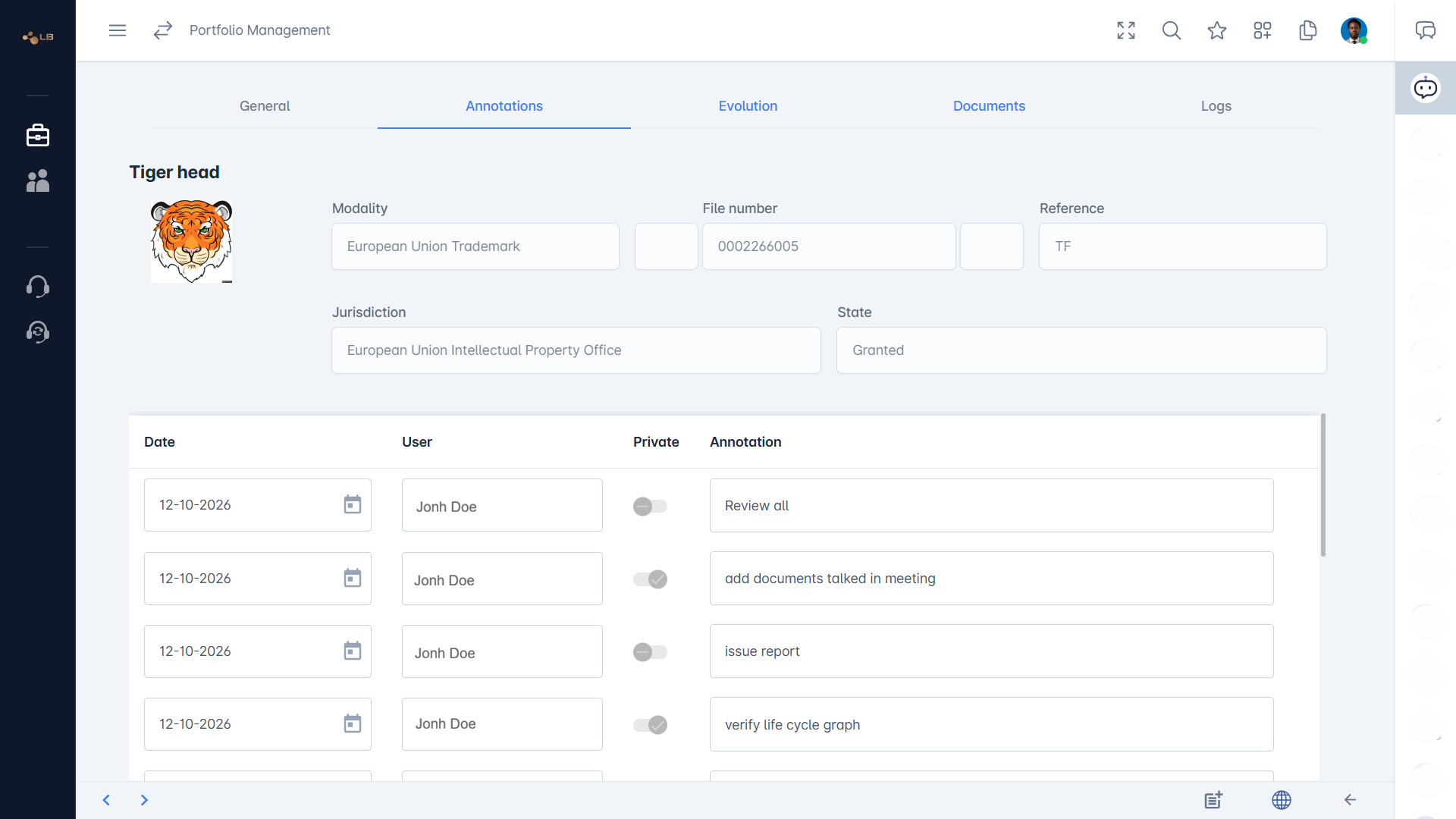
Darwin Lightbox as seen by a client: their portfolio synchronised from Ignite, with an annotation on a case.

Darwin Lightbox as seen by a client: their portfolio synchronised from Ignite, with an annotation on a case.

Open the entity in Entity Management in Darwin Ignite and go to its Lightbox tab, which lists the entity's Lightbox syncs with their number, acronym, process, name, Active flag, Role, Lightbox Account and Comments. Add a sync and fill in four fields.

Active switches the sync on; while it is ticked, the entity's cases keep being synchronised. Role is the role the entity plays on the cases to be shared, for example applicant or holder; only cases in which the entity has that role are sent. Lightbox Account is the client's Lightbox account that receives them. Comments is a free note for your colleagues, such as who asked for the sync and when.

An entity can have several rows, for instance one for the cases where it is applicant and another where it has a different role, or one for each of two Lightbox accounts belonging to different parts of the client's organisation. To stop sharing, untick Active, so no further updates are sent, or delete the row; Delete all removes every sync of the entity after confirmation. Check the role carefully: a sync on the wrong role shares the wrong cases, or none. Changing syncs normally requires an Admin or Contributor role.

Work through the chain from your entity to the client's screen. First, on the Lightbox tab of the client's entity in Entity Management, check that there is a sync row and that it is ticked Active; an inactive or deleted row sends nothing. Second, check the Role: only cases in which the entity has the role chosen on the sync are shared, so open the missing case in Ignite and confirm that the entity is recorded on it in that role, for example as applicant, rather than in another role or under a duplicate entity.

Third, check that the sync points to the right Lightbox Account, the one the client's user is actually looking at. Fourth, if the sync or the case is recent, the initial load may not have finished; its duration depends on the size of the portfolio, and changes arrive at the next synchronisation. Fifth, on the client's side, check that the user belongs to that Lightbox account, has accepted the invitation and has the right account selected in the Accounts switcher, and that no filter on their search is hiding the case.

If everything is in order and the case still does not appear, open a ticket in the Help Centre with the case reference, the entity and the Lightbox account name.

What your clients see and do

Your client's users consult the cases you synchronise to their Lightbox account, opening each on its General tab with dates, parties, classes and status, and on Annotations, Evolution and Documents, with the life cycle graph, a link to the official register of the office and Previous and Next buttons to move through their results. They can search and filter their portfolio, consult the related entities and contacts and, depending on your configuration, court cases, all read-only: there is no Edit, Delete or Save on case or entity data, so the record remains yours. What they can do is add annotations to cases, optionally marked Private to keep them within their own organisation, which makes Lightbox the place to record instructions, decisions and questions for you.

They can request and consult reports, follow their portfolio on the Performance Dashboard with its Coverage, Vitality and Conflictuality cards, Portfolio Stratification radar and World Coverage map, and manage their own profile and team, inviting colleagues with the Admin, Contributor or Reader role. Their access depends on their role in their account. Anything that needs a change to a case, a filing or a letter is done by you in Ignite and reaches them at the next synchronisation.

Your clients open Lightbox at its own address, with Darwin Lightbox's own branding on the sign-in and welcome pages, so it is clearly a consultation system rather than your full operational system. Inside, the interface has the same style and layout as Darwin Ignite, with a side menu, header tools and user menu, but a lighter set of screens: the Performance Dashboard, which monitors their activity and the performance of their portfolio, their cases and entities, reports and the Help Centre. The company logo set for their account in Company Account appears in the interface.

Each user sees Lightbox in the language chosen in their own profile, from English, Portuguese, Spanish, French, German and Italian, while the case data appears as you recorded it. The menu depends on the configuration and on the permissions of each user.

Lightbox does not offer per-client custom branding beyond the account's own logo. The first time they sign in, after accepting your invitation, they land on the Performance Dashboard, and the Help Centre offers FAQs and short tutorials on getting started, consulting the portfolio and using annotations, which you may want to point them to when you send the invitation.

Instructions that arrive on the case, not in your inbox

Annotations turn the case itself into the conversation. A client's instruction to renew, a question about an office action or a decision not to oppose is written on the case it concerns, with its author and date, where your whole team can see it next to the deadlines and documents. Nothing gets lost in an email thread, and nobody has to work out which mark a message refers to.

Annotations are the notes you attach to a case in Lightbox, and they are the one part of a case that you add yourself rather than receive from your service provider. While the case data (dates, parties, classes, status and history) is a read-only copy of your provider's record, the Annotations tab lets you write down what matters to you about that right: an instruction you want to give, a decision your company has taken, a question for your provider, a commercial note about the product the trade mark protects, or a reminder for a colleague.

Each annotation keeps its author and its date, so anyone reading it later knows who wrote it and when, and the list on the tab builds up into a running record of the thinking behind the case. An annotation can be marked Private, which keeps it within your own account; otherwise it can be shared with the other party where the synchronisation is configured to do so.

Annotations do not change the official data of the case: if a date or a party is wrong, the correction has to be made by your provider in their system, and an annotation is a good way of telling them so. Whether you can add annotations, and not only read them, depends on your role in the account.

Clients can also mark an annotation Private to keep it within their own organisation, so they can discuss a case internally in the same place.

Darwin Lightbox annotation thread between a brand owner and their agent on a renewal.

Darwin Lightbox annotation thread between a brand owner and their agent on a renewal.

Synchronisation from Darwin Ignite or Darwin 5.1

When your provider uses Darwin Ignite, the synchronisation is set up on your company's own record. In Entity Management they open the entity that represents you and go to its Lightbox tab, where they add a synchronisation row with four fields: Active, which switches the row on or off; Role, the role your company has on the cases to be shared, such as applicant; Lightbox Account, the Lightbox account that will receive them, normally yours; and Comments, for their own notes about the arrangement.

Once the row is active, every case in Ignite in which your entity has that role is copied to the chosen Lightbox account, and so are later changes to those cases. Several rows can coexist, for example one per role, or one per Lightbox account when a group of companies wants the cases split across different accounts.

The Lightbox account itself is created beforehand, from the user menu with New account, either by your company or by your provider on your behalf, and your provider then invites your contacts to it, or your account's Admin invites colleagues. Because the rule is the role on the case, a case only appears if your company is recorded in that role on it; that is the first thing to check when a case is missing.

Yes. Lightbox was first offered to the customers of Darwin 5.1, Techframe's established client-server IP management system that many firms still use, so that their clients could consult and annotate their portfolios on the web without the firm changing the system it works in.

If your provider manages your cases in Darwin 5.1, your portfolio can reach Lightbox through the same model as with Darwin Ignite: the cases in which your company has a given role are synchronised to your Lightbox account, and you consult them read-only and add annotations in exactly the same interface. The connection is configured by your provider together with Techframe, so what is shared, and how, depends on your provider's configuration.

For you as a portfolio owner the experience does not depend on which system your provider uses: you sign in with the same Darwin Suite email and password, see the same screens, and use the same Help Centre. If you are a brand owner subscribing to Lightbox yourself, the Brand Owner plan includes an option that combines annotation with integration with Darwin 5.1 or Darwin Ignite; ask your provider or the Techframe sales team which arrangement applies to you.

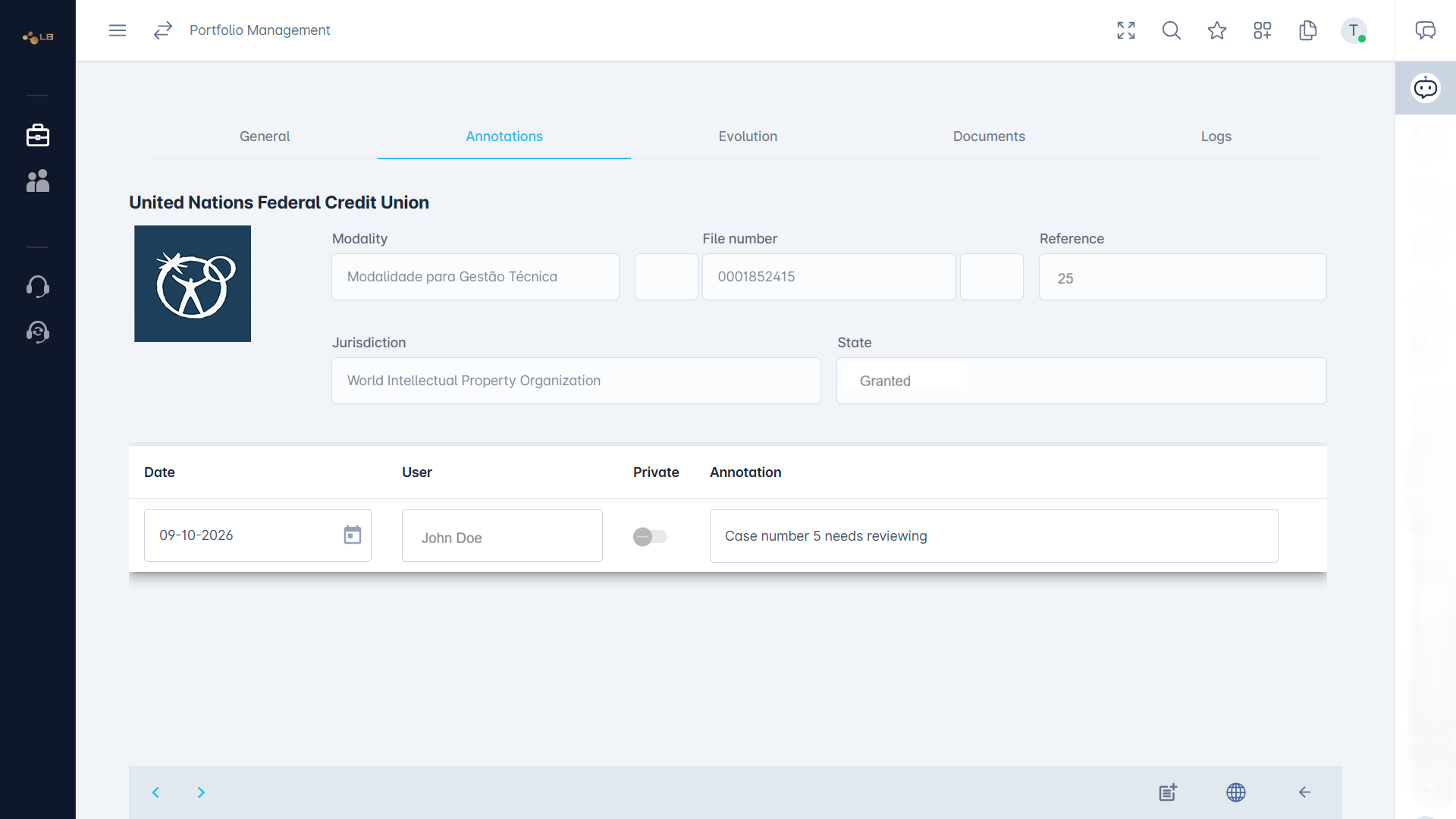
The synchronisation brings to your Lightbox account the cases in which your company holds the role your provider has chosen, together with the information you need to consult them: the case details shown on the General tab, such as the jurisdiction, reference, application and registration numbers, title, status, the important dates and the next deadline; the parties to the case, such as the applicant or holder, the representative and the person responsible at your provider; the classifications recorded (Nice, Vienna or Locarno, as applicable); the history of acts shown on the Evolution tab; and the documents your provider shares on the case, which you find on the Documents tab. The related entities and their contacts are brought across so that you can consult them as well, and court cases may be included depending on your provider's configuration.

Annotations can travel between the two sides according to how the synchronisation is configured, but private annotations always remain within the account that wrote them. Only your cases are synchronised: nothing about your provider's other clients reaches your account. If you expected to see something that is not there, such as a type of document or a group of cases, ask your provider, because what is shared is set up on their side.

Lightbox shows a copy of your provider's records that is refreshed by synchronisation, not a live view of their screen, so there can be a short interval between your provider recording a change in their system and that change appearing in your account. When a synchronisation is first set up, the initial load copies the whole portfolio and its duration depends on how many cases are involved; a large portfolio can take noticeably longer than a small one, and cases appear progressively until it is finished.

After that, updates arrive as your provider works on the cases. To judge how current a case is, look at its dates and at the most recent acts on the Evolution tab, which show what was last recorded.

Keep in mind too that some changes depend on official events: a grant or a publication only appears once the office has published it and your provider has recorded it. If a case looks out of date after a reasonable time, or you know of an event that is not shown, contact your provider, who can check their record and the synchronisation; an annotation on the case is a convenient way of pointing them to exactly what you mean.

Case, entity and court-case data cannot be changed in Lightbox, so there are no edits of that kind to send back: the record belongs to your provider's system, and any correction is made there and reaches you at the next synchronisation. What you do create in Lightbox are annotations, and they are the channel for communicating with your provider about a case.

Whether your non-private annotations are carried across to your provider's system depends on the plan and on how the synchronisation is configured: the Brand Owner plan, for example, offers annotation on its own or annotation plus integration with Darwin 5.1 or Darwin Ignite. Private annotations never leave your account in any configuration.

Other things you do in Lightbox, such as requesting reports, managing your team or changing your profile, stay within your own account and do not affect your provider's records. If you need your provider to change something, such as a wrong date, an outdated contact or a renewal decision, check with them whether they receive your annotations; if they do, write an annotation on the case, and if not, or if the matter is urgent, contact them directly as you normally would.

A synchronisation is controlled by your service provider: in Darwin Ignite, for instance, they switch off the Active option on the Lightbox tab of your company's entity record. Once it is stopped, no new updates reach your Lightbox account from that row: changes your provider makes afterwards to those cases are no longer copied to you, and new cases in which your company has that role are not added.

Stopping one row does not affect any others, so if your provider shares cases with you under several roles, or if you work with more than one provider, the remaining synchronisations carry on. Access to your Lightbox account itself is a separate matter, managed by the Admins of your account in Profile > Team: stopping a synchronisation does not remove anybody's access, and removing a user does not stop a synchronisation.

If you are changing provider, or ending a relationship, agree with your provider what should happen to the synchronisation and keep your team list up to date. If you notice that updates have stopped arriving and you did not expect it, ask your provider whether the synchronisation is still active.

Every client sees only their own portfolio

No. A Lightbox user never has access to your Darwin Ignite database. What Lightbox shows is a copy of the cases you have chosen to synchronise to that client's Lightbox account, sent only for the entity and role configured on the entity's Lightbox tab, and nothing else from your portfolio, other clients or internal records reaches it. Each Lightbox account receives only what is synchronised to it, so one client never sees another client's cases.

The data your client sees is read-only: they cannot edit, delete or create case or entity data, and any change is made by you in Ignite and arrives at the next synchronisation. Annotations you mark Private stay within your own account and are not shared with the client.

All traffic is encrypted over HTTPS, the account a user can see is taken from their authenticated session rather than from the address bar, and access within the client's account follows the roles its administrators assign. To stop sharing, untick Active on the sync or delete it, and ask the client's administrators to remove users who should no longer have access.

No. Each Lightbox account receives only the cases synchronised to it. Your provider sets up the synchronisation on your company's own entity record, naming the role your company has on the cases and the Lightbox account that should receive them, so the cases sent to your account are those in which your company holds that role, and nobody else's.

Another client of the same provider has its own Lightbox account, fed by its own synchronisation, and cannot see your cases, your annotations or your reports, just as you cannot see theirs. Within Lightbox, the account you are working in is always taken from your signed-in session rather than from the browser's address, so changing a link does not lead to another account's data, and only the people invited to your account, or whose requests to join were approved by your Admins, can open it.

The one thing to keep under your own control is who belongs to your account: review the list in Profile > Team regularly and remove anyone who should no longer have access. If you ever see a case that you believe is not yours, tell your provider at once so that they can check the role recorded on it and the synchronisation, and let Darwin Suite support know as well.

The LawFirm plan

LawFirm plan
ForIP agents, attorneys, law firms and IP service companies serving portfolio-owner clients
Price / month€450 (£380 · $510), or yearly to save two months
Free trial30 days, no card required
Client accounts25, with annotation
Users, cases and documents per accountUnlimited
Portfolio and entity consultation, life cycles, documents, reports✓
Performance dashboard, with advanced AI-powered analytics for the subscriber✓
Synchronisation from Darwin Ignite or Darwin 5.1✓

Your clients have nothing to subscribe to or pay for: the plan is yours, and it covers the accounts you open for them. The limit is the number of client accounts, never the size of their portfolios.

The free trial and your subscription

Yes. Lightbox offers a 30-day free trial of both plans: the Law Firm plan, for IP service providers who want to give their clients a window onto their portfolios, and the Brand Owner plan, for portfolio owners who want to follow in one place the portfolios their providers manage. No card is required, and seats and pricing are chosen when your trial ends. For the Brand Owner plan, the plan for portfolio owners, contact the Techframe sales team through the Help Centre.

You can start the trial when you create your account: the sign-up screen shows the 30-day free trial, and the step where you complete your profile tells you that it sets up your free trial and that you can change it later. A new account starts on the Law Firm plan. An Admin can also choose the Law Firm or the Brand Owner plan as a trial in Profile > Subscriptions.

If your service provider already gives you access to your portfolio under their own Law Firm plan, you do not need a trial or a subscription to consult it: ask them first. Prices are not given here because they change; Subscriptions and the sales team have the current figures.

The free trial of either plan, Law Firm or Brand Owner, lasts 30 days. To keep using Lightbox after that, an Admin of the account opens Profile > Subscriptions before the trial ends and chooses the plan and the number of seats. No card is asked for when the trial starts, so this is when seats and pricing are decided; payment methods are kept in Profile > Billing.

If you have questions about the end of your trial, such as what happens to the account if no plan has been chosen, or you need more time to decide, contact support or the Techframe sales team through the Help Centre before the 30 days are up.

Lightbox is paid for by the subscriber of the plan, either the service provider on the Law Firm plan or the company on the Brand Owner plan, and the payment is handled in the same place as for the rest of Darwin Suite, because accounts, subscriptions and billing are shared across the suite. An Admin of the subscribing account opens Profile > Billing, where the payment methods are kept: credit or debit cards, PayPal, or payment on current account, depending on what has been agreed with Techframe.

The 30-day free trial of either plan needs no card: payment only begins once an Admin has chosen the plan and the number of seats in Profile > Subscriptions before the trial ends. Where both are offered for the plan, you can pay monthly or yearly, and the yearly option is equivalent to saving two months. Changes of plan take effect at the next sign-in, and increases are charged pro rata. Unlike Darwin Ignite, Lightbox does not show credit balances: the credits used by other systems of the suite do not appear on Lightbox screens.

Members of an account who are not Admins, and clients who consult a portfolio under their provider's Law Firm plan, do not see Billing and have nothing to pay through it. For invoices, payment terms or questions about current account arrangements, contact the Techframe sales team; for the current prices, see Subscriptions.

Subscriptions are managed by an Admin of the subscribing account, from Profile > Subscriptions, where you see the plan currently in force and the alternatives. If the account is on a 30-day free trial, this is where an Admin chooses the plan and the number of seats before the trial ends, in order to keep using Lightbox. When you change a plan, the change takes effect the next time you sign in, so sign out and back in to see it; an increase is charged pro rata for the remainder of the current period.

If you want to cancel, to move between the Law Firm and Brand Owner plans, to add accounts, or to discuss terms that do not appear on the screen, contact the Techframe sales team, who can explain the consequences and arrange it. Before cancelling, think about what depends on the subscription: the accounts it provides, and the clients or providers who consult portfolios through them, and agree with the other party what will happen to the synchronisation.

If you do not see Subscriptions, you are probably not an Admin of the account, or you are a member of an account whose subscription belongs to someone else, typically your service provider under their Law Firm plan; in that case changes are for them, not you. Prices are not given here because they change; Subscriptions and the sales team have the current figures.

Lightbox and Darwin Ignite, from the provider's side

Darwin Lightbox is the Darwin Suite's IPCAS, a consultation and annotation system that supports the interaction and sharing of information between IP portfolio owners and their service providers. For a practice using Darwin Ignite, it is the window through which your clients can see their portfolio without asking you for status reports: a lighter web interface in which they consult their cases, with general data, annotations, evolution, documents and the life cycle graph, as well as related entities, court cases and reports, and follow their portfolio's performance on a Performance Dashboard.

Lightbox users do not change case data; they read it and add annotations, such as instructions, decisions or questions, so that the conversation about a case stays with the case rather than in scattered emails. You remain in control: you keep working in Ignite, or in Darwin 5.1 depending on your configuration, and Lightbox receives a copy of the cases you decide to share.

Lightbox runs on the same platform as Ignite, with the same sign-on, profile, team, roles and security, but its own branding and address. It can also be subscribed by portfolio owners who work with several service providers.

Darwin Ignite is the master record and Darwin Lightbox is the shared window onto it. You keep managing cases in Ignite: you edit them, record acts, receive and generate documents, and monitor bulletins.

For each client you want to serve through Lightbox, you open the client's entity in Entity Management and add a Lightbox sync on its Lightbox tab, choosing the role the entity has on cases, such as applicant, and the client's Lightbox account. The cases in which the entity has that role are then synchronised to that account, where your client's users consult them. What reaches Lightbox is a copy: clients never work in your Ignite database, and changes to case data are made by you in Ignite and arrive at the next synchronisation.

Annotations are the bridge between the two: your client can record instructions, decisions and questions on a case, and annotations you do not mark Private can be shared with the client, while Private ones stay within your own account. Both systems run on the same platform, so they share the same single sign-on, profile, roles, security and Help Centre, and a user who belongs to both moves between them with the Systems switcher. Each system has its own subscription.

There are three steps. First, the client needs a Lightbox account. One can be created from the user menu with New account, giving it a name and, if you wish, ticking Import current account configurations; it is then selected from the Accounts menu. Clients who already have a Lightbox account can simply tell you its name.

Second, in Darwin Ignite open the client's entity in Entity Management, go to its Lightbox tab and add a Lightbox sync: tick Active, choose the Role the entity has on its cases, typically applicant, select the client's Lightbox Account and add any Comments. From then on the cases in which the entity has that role are synchronised to that account.

Third, invite the client's contacts to the Lightbox account from Profile > Team, choosing the role each should have; they receive an invitation email, and a person who already uses any Darwin Suite system signs in with the same email and password. Apart from the initial load of the portfolio, whose duration depends on its size, setting this up takes a few minutes. Your Lightbox plan determines how many client accounts you can serve, and a sync usually requires an Admin or Contributor role in Ignite.

Open the entity in Entity Management in Darwin Ignite and go to its Lightbox tab, which lists the entity's Lightbox syncs with their number, acronym, process, name, Active flag, Role, Lightbox Account and Comments. Add a sync and fill in four fields.

Active switches the sync on; while it is ticked, the entity's cases keep being synchronised. Role is the role the entity plays on the cases to be shared, for example applicant or holder; only cases in which the entity has that role are sent. Lightbox Account is the client's Lightbox account that receives them. Comments is a free note for your colleagues, such as who asked for the sync and when.

An entity can have several rows, for instance one for the cases where it is applicant and another where it has a different role, or one for each of two Lightbox accounts belonging to different parts of the client's organisation. To stop sharing, untick Active, so no further updates are sent, or delete the row; Delete all removes every sync of the entity after confirmation. Check the role carefully: a sync on the wrong role shares the wrong cases, or none. Changing syncs normally requires an Admin or Contributor role.

Your client's users consult the cases you synchronise to their Lightbox account, opening each on its General tab with dates, parties, classes and status, and on Annotations, Evolution and Documents, with the life cycle graph, a link to the official register of the office and Previous and Next buttons to move through their results. They can search and filter their portfolio, consult the related entities and contacts and, depending on your configuration, court cases, all read-only: there is no Edit, Delete or Save on case or entity data, so the record remains yours. What they can do is add annotations to cases, optionally marked Private to keep them within their own organisation, which makes Lightbox the place to record instructions, decisions and questions for you.

They can request and consult reports, follow their portfolio on the Performance Dashboard with its Coverage, Vitality and Conflictuality cards, Portfolio Stratification radar and World Coverage map, and manage their own profile and team, inviting colleagues with the Admin, Contributor or Reader role. Their access depends on their role in their account. Anything that needs a change to a case, a filing or a letter is done by you in Ignite and reaches them at the next synchronisation.

No. A Lightbox user never has access to your Darwin Ignite database. What Lightbox shows is a copy of the cases you have chosen to synchronise to that client's Lightbox account, sent only for the entity and role configured on the entity's Lightbox tab, and nothing else from your portfolio, other clients or internal records reaches it. Each Lightbox account receives only what is synchronised to it, so one client never sees another client's cases.

The data your client sees is read-only: they cannot edit, delete or create case or entity data, and any change is made by you in Ignite and arrives at the next synchronisation. Annotations you mark Private stay within your own account and are not shared with the client.

All traffic is encrypted over HTTPS, the account a user can see is taken from their authenticated session rather than from the address bar, and access within the client's account follows the roles its administrators assign. To stop sharing, untick Active on the sync or delete it, and ask the client's administrators to remove users who should no longer have access.

Darwin Lightbox has two plans, distinguished by who subscribes. The Law Firm plan is for service providers, such as law firms and IP agencies, that want to serve their base of portfolio owner clients: it covers 25 accounts for IP portfolio owners, with annotation capabilities, so a practice using Darwin Ignite can give each client its own Lightbox account. The Brand Owner plan is for portfolio owners, such as companies and in-house IP teams, that want to bring their service providers together: it covers 5 accounts for IP service providers, either with annotation only, or with annotation plus integration with Darwin 5.1 or Darwin Ignite, so the owner can see in one place the cases managed by each of its providers.

Both plans offer unlimited cases and unlimited documents per account, and advanced AI-powered analytics for the subscriber. The limit is on the number of accounts, not on the size of the portfolios.

A Lightbox subscription is separate from your Ignite subscription and is managed by an Admin in Profile > Subscriptions, with monthly or yearly payment. Credit balances are not shown in Lightbox. For prices, see Subscriptions or contact the sales team.

Yes. Darwin Lightbox and Darwin Ignite share Techframe's federated single sign-on, so the same email and password give you access to both, and to every other Darwin Suite system. Once signed in, use the Systems switcher in the user menu to move between Ignite and Lightbox without signing in again, and the Accounts switcher to choose the account you are working in, for example your own practice's account in Ignite and a client's Lightbox account to see what that client sees. The data you see is always that of the account selected.

Your profile, language, password and two-step sign-in apply to both systems. Each system has its own subscription: if you open a system for which your account has no subscription, you are enrolled as Reader and the account's administrators are informed.

Your role can differ from one account to another, so you may be an Admin in your practice's account and a Reader in a client's. The same applies to your clients' users: if they already use another Darwin Suite system, they accept their Lightbox invitation by signing in with their existing email and password rather than creating a new one.

Your clients open Lightbox at its own address, with Darwin Lightbox's own branding on the sign-in and welcome pages, so it is clearly a consultation system rather than your full operational system. Inside, the interface has the same style and layout as Darwin Ignite, with a side menu, header tools and user menu, but a lighter set of screens: the Performance Dashboard, which monitors their activity and the performance of their portfolio, their cases and entities, reports and the Help Centre. The company logo set for their account in Company Account appears in the interface.

Each user sees Lightbox in the language chosen in their own profile, from English, Portuguese, Spanish, French, German and Italian, while the case data appears as you recorded it. The menu depends on the configuration and on the permissions of each user.

Lightbox does not offer per-client custom branding beyond the account's own logo. The first time they sign in, after accepting your invitation, they land on the Performance Dashboard, and the Help Centre offers FAQs and short tutorials on getting started, consulting the portfolio and using annotations, which you may want to point them to when you send the invitation.

Work through the chain from your entity to the client's screen. First, on the Lightbox tab of the client's entity in Entity Management, check that there is a sync row and that it is ticked Active; an inactive or deleted row sends nothing. Second, check the Role: only cases in which the entity has the role chosen on the sync are shared, so open the missing case in Ignite and confirm that the entity is recorded on it in that role, for example as applicant, rather than in another role or under a duplicate entity.

Third, check that the sync points to the right Lightbox Account, the one the client's user is actually looking at. Fourth, if the sync or the case is recent, the initial load may not have finished; its duration depends on the size of the portfolio, and changes arrive at the next synchronisation. Fifth, on the client's side, check that the user belongs to that Lightbox account, has accepted the invitation and has the right account selected in the Accounts switcher, and that no filter on their search is hiding the case.

If everything is in order and the case still does not appear, open a ticket in the Help Centre with the case reference, the entity and the Lightbox account name.

Do your clients run their own portfolio?

Companies that bring several providers together in one view subscribe to the BrandOwner plan themselves. If your client asks how to follow every agent they work with, this is where to send them.

Ready to try Darwin Lightbox?

From €450 / month · 30-day free trial. Compare the plans, or subscribe now and start in minutes.

Find the Darwin system that fits the way you work

Free plans for Ignite, GSE and Genius. One sign-in for all five systems.

This website uses cookies to improve your experience.